
Blue Dragonfly Sales Holds
Blue Dragonfly Sales Holds is a Microsoft Dynamics 365 Business Central extension that automatically places sales documents on hold when a customer exceeds their credit limit or has past due invoices, and releases them through Business Central’s standard approval process.
A document on hold receives one of two hold types:
- Credit Limit Hold, when the customer’s total exposure exceeds their credit limit
- Past Due Hold, when the customer has open invoices past their due date
While a document is on hold, it cannot be released, posted, used in warehouse documents, printed, or sent until an authorized approver reviews and approves it.
This guide covers three roles: sales and order entry users who work with held documents, approvers who review the requests, and administrators who configure the extension.
What’s new in version 27.0.55
Section titled “What’s new in version 27.0.55”This version changes how Sales Holds behaves in four areas that existing customers will notice on the day they upgrade. If you are upgrading from version 27.0.37 or earlier, read this section before you upgrade and share it with your warehouse, sales, and credit teams. Nothing in this section requires a setup change; it describes behavior that is now enforced.
Warehouse documents are blocked for held sales orders
Section titled “Warehouse documents are blocked for held sales orders”Until now, a hold blocked only the release and posting of a sales order. Warehouse documents could still be created and registered for a held order, and only the final shipment posting failed. In this version, the following actions are blocked for a sales order on hold:
| Page | Blocked actions |
|---|---|
| Sales Order and Sales Orders | Create Warehouse Shipment, Create Inventory Put-away/Pick |
| Warehouse Shipment | Get Source Documents, Use Filters to Get Src. Docs., Create Pick |
| Pick Worksheet | Create Pick |
| Inventory Pick and Inventory Put-away | Get Source Document |
| Warehouse Pick | Register Pick |
What to expect:
- A batch action such as Get Source Documents or Use Filters to Get Src. Docs. stops at the first held order and creates nothing for that run. The message names the order and its hold type. Remove that order from the filter, or have it approved, and run the action again.
- Sales Holds evaluates the order immediately before each of these actions. A released order that shows No Hold can therefore be blocked if the customer has gone over a limit since the order was last changed. See When a document is on hold for how the hold is saved on the order.
- The Picking List by Order report is not blocked.
Printing and sending are blocked for held documents
Section titled “Printing and sending are blocked for held documents”Held Sales Quotes, Sales Orders, Sales Invoices, and Sales Credit Memos can no longer be printed, emailed, or attached as PDF. On a Sales Order this covers Print Confirmation, Email Confirmation, Work Order, Pick Instruction, Pro Forma Invoice, and Attach as PDF. The Test Report is not blocked.
If your credit team sends a pro forma invoice to request payment from a customer who is over the limit, that document is now held and the pro forma cannot be printed until the order is approved. Request approval first, or exempt the customer from the hold: in company-level mode with the bypass flags described under Company-level bypass flags, or in customer-level mode with the hold toggles described under Customer-level configuration.
See When a document is on hold for the print actions that are blocked on each page.
Releasing a document evaluates it again
Section titled “Releasing a document evaluates it again”Until now, Sales Holds evaluated a document when it was changed and when it was posted. Releasing a document only checked the hold status already stored on it. In this version, every release evaluates the document first. An order that was created while the customer was under the limit, and was never edited after the customer went over it, is now held when it is released, including when it is reopened and released again. See How hold evaluation works.
Workflows that require more than one approval
Section titled “Workflows that require more than one approval”This change applies only if you changed the Sales Holds approval workflow so that each member of the SALESHOLDAPPR workflow user group must approve in turn. In that configuration, earlier versions could release the document after the first approval while the requests of later approvers were still waiting. In this version the document stays blocked as long as any approval request for it has the status Created or Open, so it is released only after the last approver approves.
The workflow that Create Default Workflow creates is not affected. In that workflow, one approval approves the requests of the other members and releases the document, as before. See Approval workflows.
Other changes
Section titled “Other changes”- Hold evaluation runs for every user. Changes made by a user without a Sales Holds permission set were previously not evaluated at all, and a block that ran for such a user could fail with a permission error. Both are fixed. Every user who edits sales documents still needs the REG PS BLD permission set from the Blue Dragonfly Registration extension; without it their changes are not evaluated. See Permission sets.
- Allow Changes to Approved Documents is now honored. The setting existed before but had no effect; approved documents were always exempt from further evaluation. The upgrade turns the setting on in every company that already has a setup record, so behavior is unchanged until an administrator turns it off. See Allow Changes to Approved Documents.
- Sales Holds list. The list is read-only. Approve and Approve Selected now explain why a document could not be approved, and Approve Selected approves the documents it can and reports the rest instead of stopping at the first failure. An Approval Administrator can approve another approver’s open request from the list. The Workflow Status column shows Superseded for a document that was approved and then held again. See Finding all held documents and Approving from the Sales Holds list.
- Diagnostic log. New event types Warehouse Blocked, Print Blocked, and Approval Superseded. Release Blocked entries are now kept; in earlier versions they were lost when the release was rolled back. See Diagnostic logging.
- Change Log settings are left alone. Installing or upgrading Sales Holds no longer changes Change Log table settings that already exist in the company.
- Shipment Quantity Diagnostic is retired. The page and its Shipment Quantity Diagnostic action on Sales Holds Setup are hidden and will be removed in a later version. Contact Blue Dragonfly support if a sales order’s shipped quantities need to be investigated.
Prerequisites
Section titled “Prerequisites”Before using Sales Holds, ensure the following are in place:
| # | Requirement | Who is responsible |
|---|---|---|
| 1 | Sales Holds extension installed from AppSource | System administrator |
| 2 | Sales Holds registered, with a valid license (see Registering the extension) | Administrator |
| 3 | Permission sets assigned to users (see Permission sets) | System administrator |
| 4 | Sales Holds Setup configured with hold rules enabled | Administrator |
| 5 | The approval workflow created with Create Default Workflow on the setup page and enabled on the Workflows page (see Approval workflows) | Administrator |
| 6 | Approvers added to the workflow user group | Administrator |
Sales Holds evaluates documents only when requirements 2 and 4 are complete. Requirement 4 means that Sales Holds Setup has been opened at least once, at least one document type is selected, and Enforce Credit Limit Sales Hold or Enforce Past Due Sales Hold is on. Until requirements 5 and 6 are complete, holds are applied but users cannot send approval requests.
For sales and order entry users
Section titled “For sales and order entry users”What you will see on sales documents
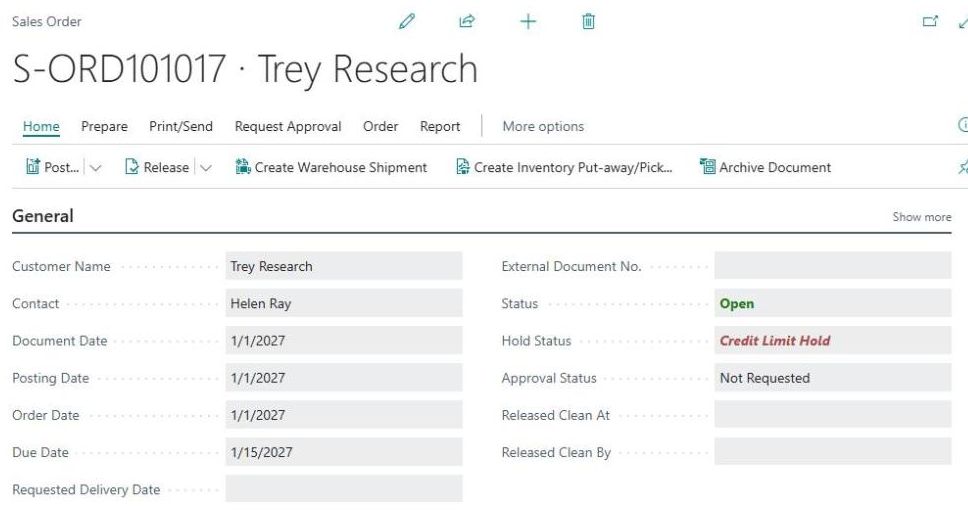
Section titled “What you will see on sales documents”When you open a Sales Quote, Sales Order, Sales Invoice, or Sales Credit Memo, these fields appear on the General FastTab of the document header:
| Field | What it tells you |
|---|---|
| Hold Status | Whether the document is on hold and why |
| Approval Status | Whether an approval has been requested and its current state |
| Released Clean At | When the document was released while the customer was within all limits |
| Released Clean By | Who released it at that time |
All four fields are read-only. Hold Status and Approval Status appear only when your administrator has enabled holds for that document type. If you do not see them on a Sales Quote, for example, quotes are not being evaluated in your company.
Released Clean At and Released Clean By are blank unless clean release tracking is in use. See Clean release tracking.
Hold Status values
Section titled “Hold Status values”| Value | Meaning | Actions blocked? |
|---|---|---|
| No Hold | The customer is within all limits, no action needed | No |
| Credit Limit Hold | The customer’s total exposure exceeds their credit limit | Yes, release, post, warehouse, and print are blocked |
| Past Due Hold | The customer has overdue open invoices beyond the tolerance | Yes, release, post, warehouse, and print are blocked |
| Approved | The hold was reviewed and approved, or an administrator approved the order on the Previously Released Orders page. The document can proceed | No |
| Bypass Credit Limit | The customer exceeds their credit limit but is flagged to bypass credit limit holds (informational) | No |
| Bypass Past Due | The customer has past due invoices beyond the tolerance but is flagged to bypass past due holds (informational) | No |
Approval Status values
Section titled “Approval Status values”| Value | Meaning |
|---|---|
| Not Requested | No approval has been requested for this document |
| Pending Approval | An approval request has been sent and is waiting for a decision |
| Approved | The document has been approved and can be processed |
When a document is on hold
Section titled “When a document is on hold”If Hold Status shows Credit Limit Hold or Past Due Hold, the document is blocked. You will not be able to:
- Release the document. You will see: “This document cannot be released because it is on Sales Hold (Credit Limit Hold). Request approval and complete the approval process first.”
- Post the document, including Ship, Invoice, Post, and Post and Send, and posting from an Inventory Pick. You will see: “This document cannot be posted because it is on Sales Hold (Credit Limit Hold). Request approval and complete the approval process first.”
- Create or register warehouse documents for a Sales Order. You will see: “Warehouse documents cannot be created or registered for Sales Order S-ORD101001 because it is on Sales Hold (Credit Limit Hold). Request approval and complete the approval process first.”
- Print or send the document. You will see: “Sales Order S-ORD101001 cannot be printed or sent because it is on Sales Hold (Credit Limit Hold). Request approval and complete the approval process first.”
The hold type in parentheses reflects the hold on your document, so a past due hold shows “Past Due Hold” in the same message. The document type and number in the warehouse and print messages are those of your document.
The warehouse block applies to these actions:
| Page | Actions |
|---|---|
| Sales Order and Sales Orders | Create Warehouse Shipment, Create Inventory Put-away/Pick |
| Warehouse Shipment | Get Source Documents, Use Filters to Get Src. Docs., Create Pick |
| Pick Worksheets | Create Pick |
| Inventory Pick and Inventory Put-away | Get Source Document |
| Warehouse Pick | Register Pick |
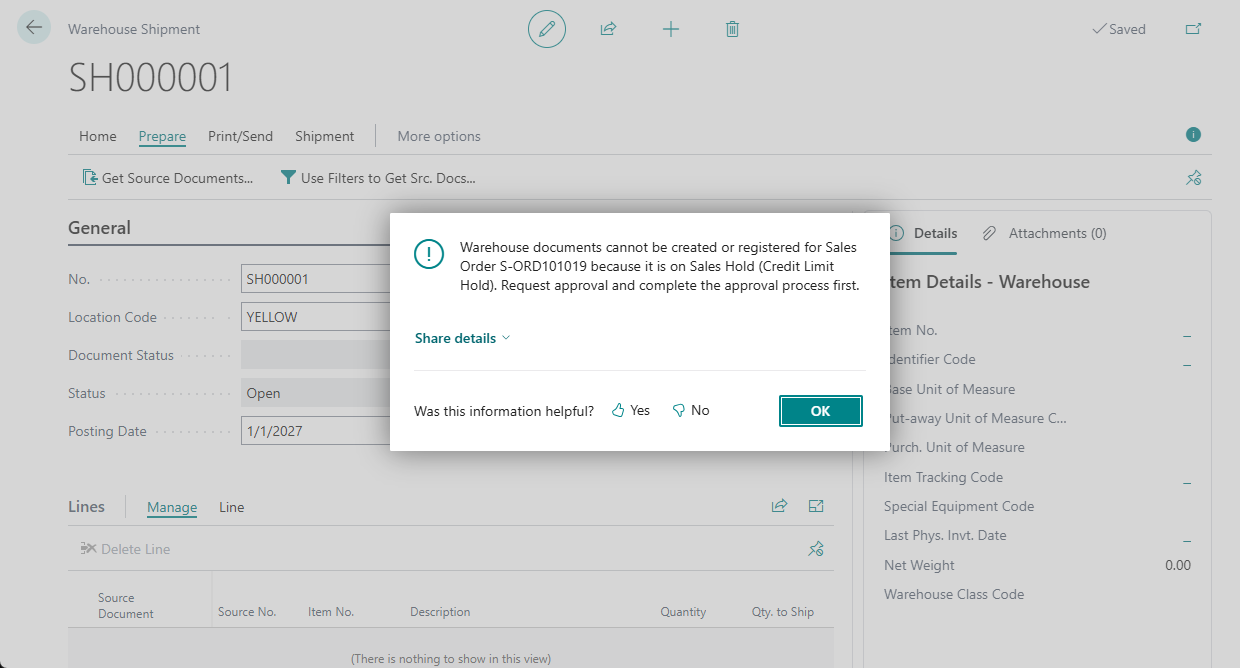
If the Sales Order is still open, Create Warehouse Shipment and Create Inventory Put-away/Pick release it first, so the release message appears instead of the warehouse message.
The print block applies to these actions:
| Page | Actions |
|---|---|
| Sales Order | Print Confirmation, Email Confirmation, Work Order, Pick Instruction, Pro Forma Invoice, Attach as PDF |
| Sales Orders | Print Confirmation, Email Confirmation, Attach as PDF |
| Sales Quote | Print, Send by Email, Attach as PDF |
| Sales Invoice | Draft Invoice, Pro Forma Invoice, Attach as PDF |
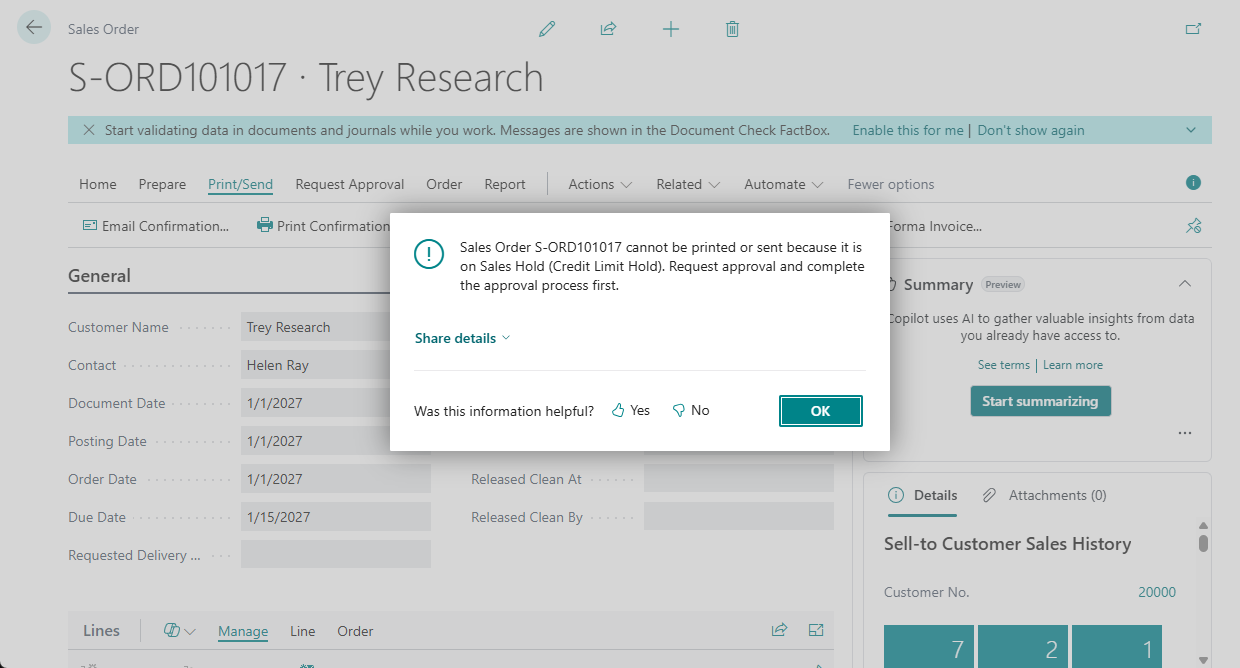
Sales Holds evaluates the document again immediately before it is released, posted, printed, or used in one of these warehouse actions. A document that showed No Hold earlier in the day can therefore be held at that moment if the customer’s balance has changed since.
Requesting approval
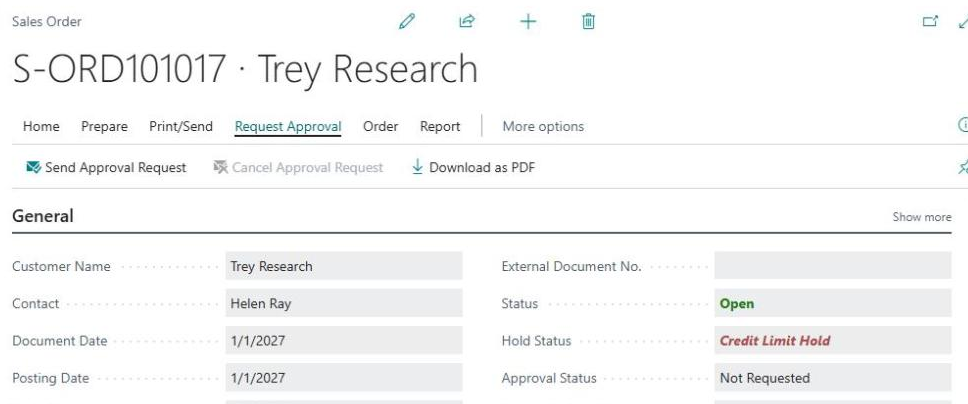
Section titled “Requesting approval”- Open the sales document that is on hold.
- In the action bar, choose Request Approval, then Send Approval Request.
- A confirmation message appears.
- The Approval Status field changes to Pending Approval.
- Wait for the approver to review the request.
After approval
Section titled “After approval”Once the approver approves your request:
- Hold Status changes to Approved
- Approval Status changes to Approved
- The approval workflow releases the document
- All blocked actions become available, so you can post, ship, and print
What happens if you then edit the document depends on how your administrator configured Allow Changes to Approved Documents in Sales Holds Setup:
- On (the default): you can add lines, change quantities, and change dates freely. No new hold is applied and no second approval is needed.
- Off: the document is evaluated again after your change. If the customer still exceeds a limit, a new hold is applied and you must request approval again.
The setting applies only to changes to the document. Releasing, posting, printing, and warehouse actions never place an approved document on hold again.
If you are unsure which applies in your company, ask your administrator, or make a change and check the Hold Status field.
If your request is rejected
Section titled “If your request is rejected”- Hold Status stays as it was, so the document is still on hold
- Approval Status returns to Not Requested
- The approval workflow reopens the document and notifies the user who sent the request
- The document remains blocked
Discuss the rejection with the approver, make adjustments if needed, and send a new approval request.
On the Sales Holds list page, the Workflow Status column shows Rejected for the document even though Approval Status reads Not Requested. The two columns come from different sources: Workflow Status reports the last approval decision, and Approval Status reports whether an approval is currently in effect.
Canceling an approval request
Section titled “Canceling an approval request”If you sent a request by mistake, or need to make changes before the approver acts:
-
Open the sales document.
-
Choose Request Approval, then Cancel Approval Request.
-
A message confirms the cancellation:
The approval request for the hold has been canceled.
-
Approval Status returns to Not Requested, and the approval workflow reopens the document.
-
The document remains on hold. Send a new request when you are ready.
On the Sales Holds list page, the Workflow Status column shows Cancelled for the document.
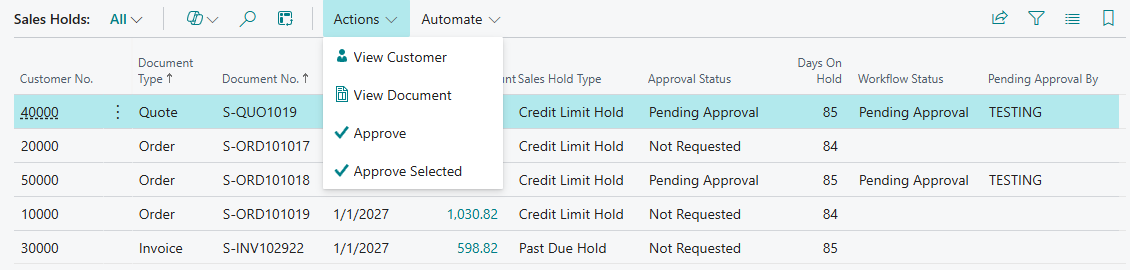
Finding all held documents
Section titled “Finding all held documents”To see every sales document currently on hold:
- Search for Sales Holds using Tell Me.
- The Sales Holds list page opens, showing all documents with a Credit Limit Hold or Past Due Hold.
The list is read-only. It shows these columns:
| Column | Contents |
|---|---|
| Customer No. | The bill-to customer on the document |
| Document Type | Quote, Order, Invoice, or Credit Memo |
| Document No. | The document number |
| Document Date | The date of the document |
| Amount | The total amount including VAT |
| Sales Hold Type | Credit Limit Hold or Past Due Hold |
| Approval Status | Not Requested, Pending Approval, or Approved |
| Days On Hold | The number of days from the date the hold was applied to the work date. The count starts again when a new hold replaces an earlier approval |
| Workflow Status | The last approval decision: Pending Approval, Approved, Rejected, or Cancelled. Superseded means a new hold replaced an earlier approval. The column is blank when no approval has been requested |
| Pending Approval By | The approver whose decision is pending. The column is blank when no approval is pending |
From the list you can also choose View Customer to open the customer card, or View Document to open the held document itself.
For approvers
Section titled “For approvers”Receiving approval requests
Section titled “Receiving approval requests”When a user sends an approval request for a held document, you receive a notification according to your notification settings. You can also find pending requests by searching for Requests to Approve and filtering to the entries assigned to you.
If the SALESHOLDAPPR workflow user group has more than one member, the request is first opened for the member with the lowest Sequence No. in the group, or for every member who has that number. What happens when one of them approves depends on how your administrator set up the workflow:
- The workflow as created by Create Default Workflow: the approval of one of them is enough. The workflow approves the requests of the other members and releases the document.
- A workflow changed so that each approver must approve: the request is then opened for the members with the next Sequence No., and the document stays on hold until the last approver approves.
Reviewing a request
Section titled “Reviewing a request”From the approval request you can:
- Open the document to review its details
- Check Hold Status to see whether it is a Credit Limit Hold or a Past Due Hold
- Open the Customer Card to review the credit limit, exposure, and past due invoices
Taking action
Section titled “Taking action”| Action | What it does |
|---|---|
| Approve | Approves your request. When no other approval request for the document is waiting, this clears the hold, sets the document to Approved, releases the document, and unblocks all processing actions. With the workflow as created by Create Default Workflow, one approval is enough (see Receiving approval requests) |
| Reject | Keeps the document on hold and reopens it. The requestor is notified and can resubmit |
| Delegate | Forwards the request to your substitute as set up in Approval User Setup. If no substitute is set up, Business Central forwards it to your approver or to an approval administrator |
Approving from the Sales Holds list
Section titled “Approving from the Sales Holds list”You can approve held documents directly from the Sales Holds list page.
To approve one document:
- Search for Sales Holds using Tell Me.
- Select the document.
- Choose Approve.
To approve several documents at once:
- Search for Sales Holds using Tell Me.
- Select the documents you want to approve.
- Choose Approve Selected.
You can approve a document from the list when its approval request is currently assigned to you. A user marked as Approval Administrator in Approval User Setup can also approve a request that is assigned to another approver.
When Approve cannot approve the document, a message names the document and gives the reason:
| Reason | Message |
|---|---|
| No approval request exists | ”There is no approval request for Order S-ORD101001. Use Request Approval on the document first.” |
| The request has not been opened for approval yet | ”The approval request for Order S-ORD101001 has not been opened for approval yet.” |
| The request is assigned to another approver | ”The approval request for Order S-ORD101001 is assigned to APPROVER1. Only APPROVER1 or an approval administrator can approve it.” |
| Your approval comes later in the approval chain | ”The approval request for Order S-ORD101001 is with APPROVER1. Your approval is requested later in the approval chain, so you cannot approve it yet.” |
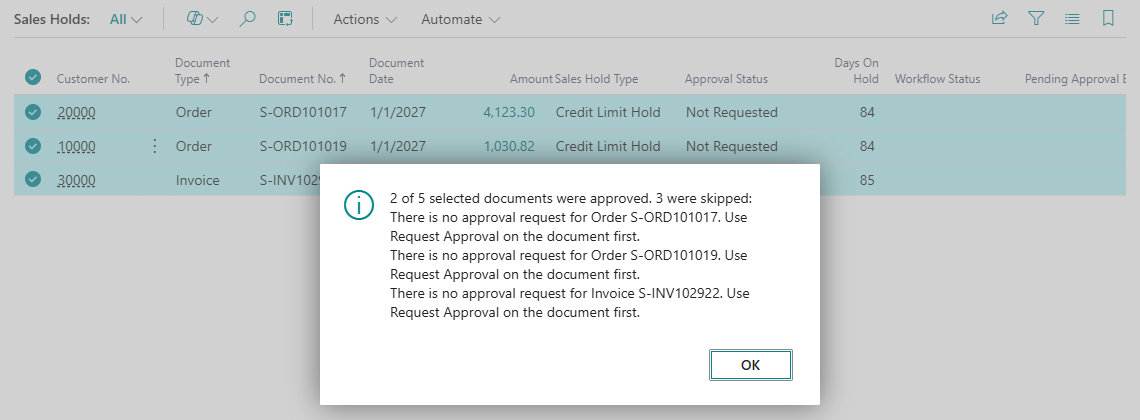
Approve Selected approves every selected document that you can approve and saves each approval as it goes. It then shows one summary message:
- When all were approved: “All 5 selected documents were approved.”
- When some were skipped: “3 of 5 selected documents were approved. 2 were skipped:” followed by each skipped document and its reason.
- When none could be approved: “None of the 5 selected documents could be approved:” followed by each document and its reason.
The summary names up to five skipped documents and counts the rest, for example “…and 3 more.”
After you approve
Section titled “After you approve”- The approval workflow releases the document, and the user can post, ship, or print it
- Your decision is recorded in the Approval Entries for audit purposes
- Whether later edits require a second approval depends on the Allow Changes to Approved Documents setting. See After approval
For administrators
Section titled “For administrators”Environment requirements and installation
Section titled “Environment requirements and installation”System requirements
Section titled “System requirements”| Requirement | Details |
|---|---|
| Business Central version | Microsoft Dynamics 365 Business Central 2025 Release Wave 2 (version 27.0) or later |
| Deployment type | Cloud (SaaS) only. On-premises and private cloud deployments are not supported |
| Supported countries and regions | United States and Canada |
| Required dependency | The Blue Dragonfly Registration app, installed automatically with Sales Holds |
Installing the extension
Section titled “Installing the extension”Sales Holds is installed directly from Microsoft AppSource. End-customer administrators install and manage the app.
- Go to Microsoft AppSource and search for Sales Holds.
- Choose Get it now on the Blue Dragonfly Sales Holds listing.
- Sign in with your Microsoft 365 administrator account when prompted.
- Select the Business Central environment where you want to install the app.
- Accept the permissions and confirm the installation.
- Business Central notifies you when the installation is complete.
Registering the extension
Section titled “Registering the extension”The registration wizard starts automatically the next time a Role Center opens after installation. When registration succeeds, the Sales Holds Setup page opens so you can begin configuring the extension.
If registration does not complete, you see this message:
Registration Process did not complete. Please contact us at support@bluedragonflyllc.com
To re-synchronize your license later, open Sales Holds Setup and choose Sync License.
Sales Holds checks the license each time it evaluates a document. If the license is not valid, Sales Holds does not evaluate or block any document, and it shows no message. These actions show the license error instead:
- Create Default Workflow on the Sales Holds Setup page
- Admin Approve on the Previously Released Orders page
- Cleanup Expired Entries on the Sales Holds Diagnostic Log page
- Opening the Previously Released Orders page or the Sales Holds Diagnostic Log page
Post-installation checklist
Section titled “Post-installation checklist”| # | Step | Where |
|---|---|---|
| 1 | Configure hold types and tolerances | Tell Me: Sales Holds Setup |
| 2 | Create the approval workflow | Sales Holds Setup, Create Default Workflow |
| 3 | Enable the workflow | Tell Me: Workflows, then enable BD-SHSALESHOLDS |
| 4 | Add approvers to the workflow user group | Tell Me: Workflow User Groups, then SALESHOLDAPPR |
| 5 | Assign permission sets to users | Tell Me: Users |
| 6 | If using customer-level mode, enable the hold toggles on each Customer Card | Customer Card, Sales Hold Options |
| 7 | Review released orders that have no hold, including orders released before installation | Sales Holds Setup, Previously Released Orders |
| 8 | Create a test Sales Order for a customer over their credit limit and confirm a hold is applied | Sales Order page |
Uninstalling
Section titled “Uninstalling”To uninstall Sales Holds, open Extension Management, locate Blue Dragonfly Sales Holds, and choose Uninstall.
Sales Holds Setup
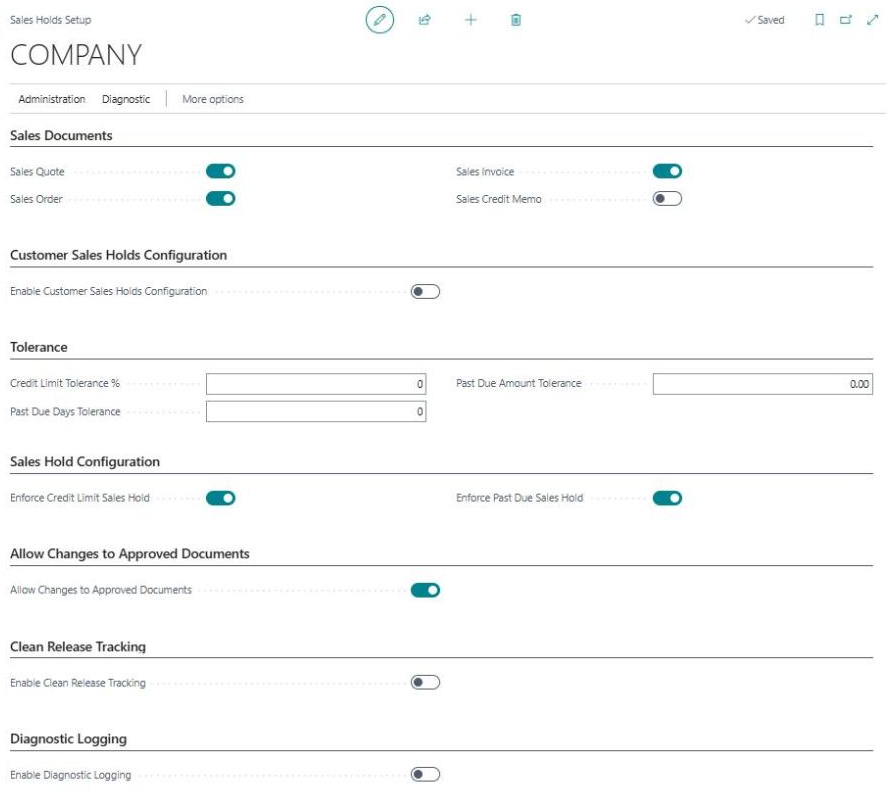
Section titled “Sales Holds Setup”Search for Sales Holds Setup using Tell Me. The setup record is created automatically the first time you open the page. Until then, Sales Holds does not evaluate any document.
Sales Documents
Section titled “Sales Documents”Choose which document types Sales Holds evaluates.
| Setting | Description |
|---|---|
| Sales Quote | Evaluate holds on Sales Quotes |
| Sales Order | Evaluate holds on Sales Orders |
| Sales Invoice | Evaluate holds on Sales Invoices |
| Sales Credit Memo | Evaluate holds on Sales Credit Memos |
Turning a document type off also hides the Hold Status and Approval Status fields on that document’s page.
Customer Sales Holds Configuration
Section titled “Customer Sales Holds Configuration”| Setting | Description |
|---|---|
| Enable Customer Sales Holds Configuration | On selects customer-level mode, where each customer has individual hold settings and tolerances. Off selects company-level mode, where one set of tolerances applies to everyone and individual customers can be flagged to bypass holds |
Choose customer-level mode when your credit terms vary by customer and you want tolerances set per account. Choose company-level mode when one policy applies across the business and you only need exceptions for a few customers.
Tolerance
Section titled “Tolerance”These fields appear only in company-level mode, when Enable Customer Sales Holds Configuration is off.
| Setting | Description |
|---|---|
| Credit Limit Tolerance % | The percentage above the credit limit allowed before a hold is applied. For example, 5% on a $10,000 limit allows up to $10,500 |
| Past Due Days Tolerance | The number of days past due allowed before a hold is applied. For example, 7 means invoices up to 7 days overdue do not trigger a hold |
| Past Due Amount Tolerance | The total past due amount (LCY) allowed before a hold is applied |
Sales Hold Configuration
Section titled “Sales Hold Configuration”| Setting | Description |
|---|---|
| Enforce Credit Limit Sales Hold | When On, documents are placed on hold when customers exceed their credit limit |
| Enforce Past Due Sales Hold | When On, documents are placed on hold when customers have past due invoices |
These are the master switches. In customer-level mode, a hold type must be enabled here and on the customer before it applies to that customer’s documents.
Allow Changes to Approved Documents
Section titled “Allow Changes to Approved Documents”| Setting | Description |
|---|---|
| Allow Changes to Approved Documents | When On, an approved document can be edited without being evaluated again, so no new hold is applied and no second approval is needed. When Off, the document is evaluated again after each change, and a new hold and approval are required if the customer still exceeds a limit. On by default |
Turn this on when approval represents a business decision about the order as a whole, and users routinely adjust documents afterward. Turn it off when the approval should apply only to the document as it stood when it was approved.
The setting applies only to changes to the document. Releasing, posting, printing, and warehouse actions never place an approved document on hold again, whichever option you choose.
Clean Release Tracking
Section titled “Clean Release Tracking”| Setting | Description |
|---|---|
| Enable Clean Release Tracking | When On, a document released while the customer is within all limits is marked, and it is not evaluated for holds again |
See Clean release tracking for the full description.
Diagnostic Logging
Section titled “Diagnostic Logging”| Setting | Description |
|---|---|
| Enable Diagnostic Logging | When On, Sales Holds records detailed event data for troubleshooting. Off by default |
| Diagnostic Log Retention Days | The age, in days, after which Cleanup Expired Entries deletes log entries. The default is 30. This field appears only when logging is on |
See Diagnostic logging.
Customer-level configuration
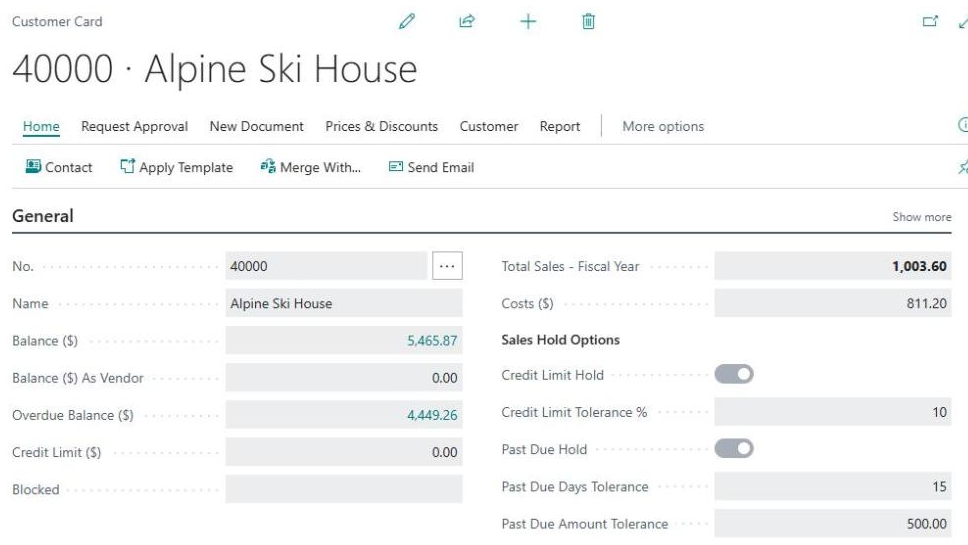
Section titled “Customer-level configuration”When Enable Customer Sales Holds Configuration is on, a Sales Hold Options group appears on each Customer Card:
| Field | Description |
|---|---|
| Credit Limit Hold | Evaluate credit limit holds for this customer |
| Credit Limit Tolerance % | This customer’s credit limit tolerance |
| Past Due Hold | Evaluate past due holds for this customer |
| Past Due Days Tolerance | This customer’s past due days tolerance |
| Past Due Amount Tolerance | This customer’s past due amount tolerance (LCY) |
The two toggles are independent. Turning on Credit Limit Hold alone gives that customer credit limit holds but not past due holds.
Company-level bypass flags
Section titled “Company-level bypass flags”When Enable Customer Sales Holds Configuration is off, a Bypass Sales Hold Options group appears on each Customer Card:
| Field | Description |
|---|---|
| Bypass Credit Limit Hold | When On, this customer is exempt from credit limit holds. When the customer exceeds their credit limit, their documents show Bypass Credit Limit instead of being blocked |
| Bypass Past Due Hold | When On, this customer is exempt from past due holds. When the customer has past due invoices beyond the tolerance, their documents show Bypass Past Due instead of being blocked |
Bypass statuses are informational. They never block processing. A flagged customer who is within the limit shows No Hold.
Credit limit field security
Section titled “Credit limit field security”The Credit Limit (LCY) field on the Customer Card is read-only unless the user is assigned the Sales Holds Credit Limit permission set (SHL HOLDCREDIT BLD). This applies to every user, including users with the SUPER permission set. It prevents a user from clearing a hold by raising the customer’s credit limit.
Permission sets
Section titled “Permission sets”| Permission set | Who needs it | What it grants |
|---|---|---|
Sales Holds Setup (SHL HOLDSETUP BLD) | Administrators | Full access to Sales Holds Setup, Previously Released Orders, and the Sales Holds Diagnostic Log |
Sales Holds Manage (SHL HOLDMANAGE BLD) | Sales managers, credit staff | The Sales Holds list page, the Role Center cue, and the diagnostic log, plus permission to edit customers, including the customer hold fields |
Sales Holds Credit Limit (SHL HOLDCREDIT BLD) | Credit managers | The ability to edit Credit Limit (LCY) on the Customer Card, plus permission to edit customers, including the customer hold fields |
Approval workflows
Section titled “Approval workflows”Sales Holds uses one approval workflow for both hold types. The extension creates it for you.
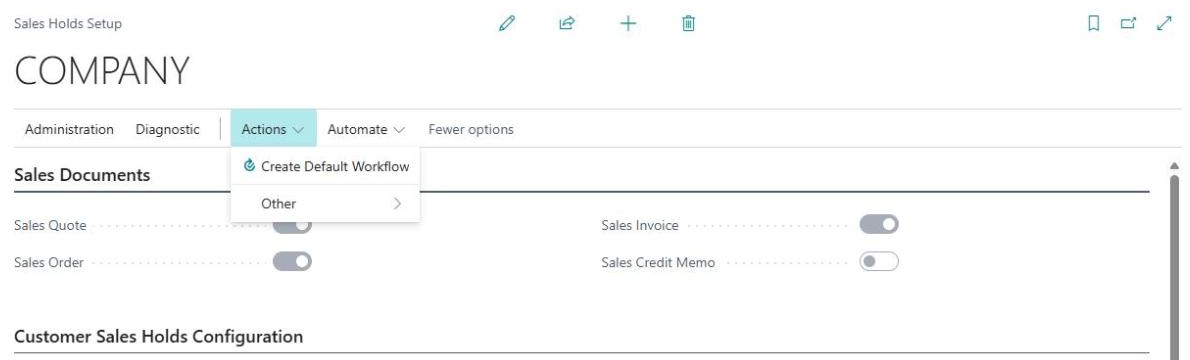
- Open Sales Holds Setup.
- Choose Actions, then Create Default Workflow.
- A message confirms that the workflow was created and lists the next steps.
The action creates:
- Workflow BD-SHSALESHOLDS, described as “BD Sales Hold - Approval”, in the workflow category BD Sales Holds
- Workflow user group SALESHOLDAPPR, described as “Sales Holds Approvers”
The workflow starts when a user sends an approval request for a Sales Quote, Sales Order, Sales Invoice, or Sales Credit Memo that is open and has Hold Status = Credit Limit Hold or Past Due Hold. It handles the request as follows:
| Event | What the workflow does |
|---|---|
| Approved | Approves all requests for the document and releases the document |
| Rejected | Rejects all requests for the document, notifies the user who sent the request, and reopens the document |
| Canceled | Cancels all requests for the document, reopens the document, and shows “The approval request for the hold has been canceled.” |
| Delegated | Sends the request to the delegated approver |
When a user sends an approval request, the request is opened for the member of SALESHOLDAPPR with the lowest Sequence No., or for every member who has that number. In the workflow as created, the approval of one of them is enough to clear the hold: the workflow approves the requests of the other members and releases the document, and members with a higher Sequence No. are not asked to approve.
The workflow that Create Default Workflow creates is a starting point. You can change it on the Workflows page like any other Business Central approval workflow. For example, to require each member of SALESHOLDAPPR to approve in turn, use the standard Sales Order Approval Workflow template as a model: when an approval leaves other requests pending, send the request to the next approver, and release the document only when no requests are pending. Keep the conditions on the first step, which limit the workflow to documents that are on hold. Sales Holds keeps a document blocked as long as any approval request for it has the status Created or Open, so the document is released only after the last approver approves.
Clean release tracking
Section titled “Clean release tracking”Clean release tracking prevents a document that was released legitimately from being pulled back into a hold later because the customer’s position deteriorated afterward.
When Enable Clean Release Tracking is on and a user releases a document while no hold is active, Sales Holds records Released Clean At and Released Clean By on that document. From then on, the document is not evaluated for holds again.
Details worth knowing before you turn it on:
- The mark is written once and never overwritten, so releasing a document a second time does not change who or when.
- Documents released through the approval workflow are not marked. They carry Hold Status = Approved instead.
- Documents released while a bypass status is in effect are not marked. This keeps the customer’s bypass toggle as the control for those orders, so clearing the toggle brings them back under evaluation.
- Turning the setting off makes Sales Holds ignore existing marks and resume normal evaluation. The recorded values are kept, so turning it back on restores the exemption for previously marked documents.
Use this when your users release orders as part of a normal daily process and you do not want a later balance change to block a shipment that was already approved to go out.
Previously released orders
Section titled “Previously released orders”Sales orders released before Sales Holds was installed have no hold history. They are not treated as exempt: the next time such an order is changed, posted, printed, or used in a warehouse action, it is evaluated and can be held like any other order.
This is deliberate. If released orders were exempt automatically, a user could disable Sales Holds, release a batch of orders, and re-enable it to avoid the credit controls.
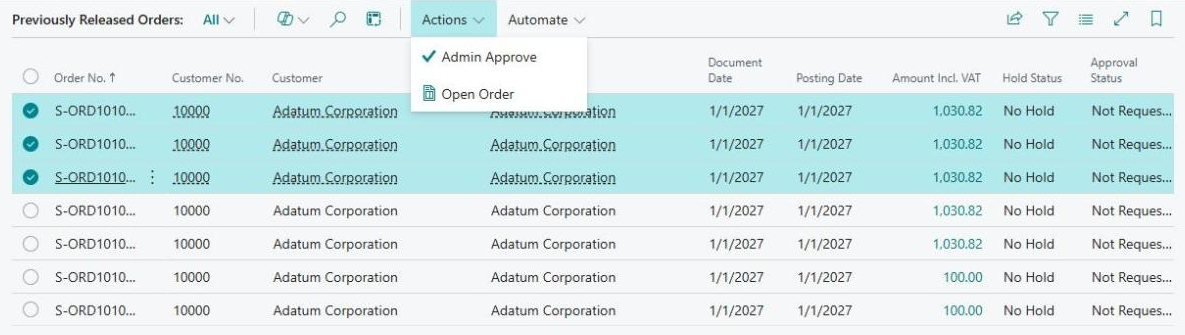
The Previously Released Orders page lists every sales order with Status = Released, Hold Status = No Hold, and Approval Status = Not Requested. This includes orders released after installation while no hold applied, for example orders marked by clean release tracking. The page shows these columns:
| Column | Contents |
|---|---|
| Order No. | The sales order number |
| Customer No. | The sell-to customer number |
| Customer | The sell-to customer name |
| Bill-to Customer | The bill-to customer name |
| Document Date | The document date of the order |
| Posting Date | The posting date of the order |
| Amount Incl. VAT | The total amount including VAT |
| Hold Status | The current Sales Holds status of the order |
| Approval Status | The current Sales Holds approval status of the order |
To clear these orders:
- Open Sales Holds Setup and choose Previously Released Orders, or search for Previously Released Orders using Tell Me.
- Review the orders. To inspect one in detail, choose Actions, then Open Order.
- Select the orders you want to clear.
- Choose Actions, then Admin Approve. A message confirms how many orders were approved, for example “3 order(s) have been admin-approved.”
Approved orders receive Hold Status = Approved and Approval Status = Approved, and they proceed without going through the approval workflow. They are not evaluated for holds again, whichever option is set in Allow Changes to Approved Documents.
Hold priority rule
Section titled “Hold priority rule”When a customer triggers both a Credit Limit Hold and a Past Due Hold at the same time, only the Credit Limit Hold is applied. Credit limit has priority, and evaluation stops as soon as that hold is set.
When Allow Changes to Approved Documents is off, an approved document is evaluated again on the next change, and the credit limit is checked first again. If the customer still exceeds the credit limit, a new Credit Limit Hold is applied. The past due check runs only when the customer is within the credit limit, and a Past Due Hold can then be applied.
How hold evaluation works
Section titled “How hold evaluation works”Sales Holds evaluates a document automatically. Evaluation runs when:
- The Sell-to Customer No. or Bill-to Customer No. changes
- A sales line is added, modified, or deleted
- The Posting Date changes
- A user releases the document, immediately before the release
- A user posts the document, immediately before posting begins
- A user starts one of the warehouse or print actions listed in When a document is on hold, immediately before the action
Evaluation does not run for the sales line changes that Business Central makes while it posts a document.
Evaluation uses the customer in the Bill-to Customer No. field of the document.
Credit limit evaluation
Section titled “Credit limit evaluation”Total exposure is the sum of:
Balance (LCY)+ Outstanding Orders (LCY)+ Shipped Not Invoiced (LCY)+ Outstanding Invoices (LCY)+ Open service orders and service invoicesFor a Sales Quote, the quote’s own amount is added to that total, because quotes are not included in the standard Business Central exposure figures.
The allowed limit is the customer’s Credit Limit (LCY) increased by the tolerance percentage, rounded up to the cent. A Credit Limit Hold is applied when total exposure is greater than the allowed limit.
Past due evaluation
Section titled “Past due evaluation”Sales Holds looks at open posted sales invoices in the customer ledger with a due date on or before the day before the work date. It totals the remaining amounts and measures days past due from the oldest of those invoices.
A hold is not applied when:
- There is no past due amount
- A Past Due Days Tolerance is set and the oldest invoice is within it
- A Past Due Amount Tolerance is set and the total is within it
Diagnostic logging
Section titled “Diagnostic logging”Sales Holds can record detailed information about every hold decision to the Sales Holds Diagnostic Log. Logging is off by default and is intended for troubleshooting.
To use it:
- In Sales Holds Setup, turn on Enable Diagnostic Logging.
- Set Diagnostic Log Retention Days.
- Reproduce the problem.
- Choose View Diagnostic Log, or search for Sales Holds Diagnostic Log using Tell Me, to review the entries or provide them to support.
Turn logging off again once troubleshooting is complete.
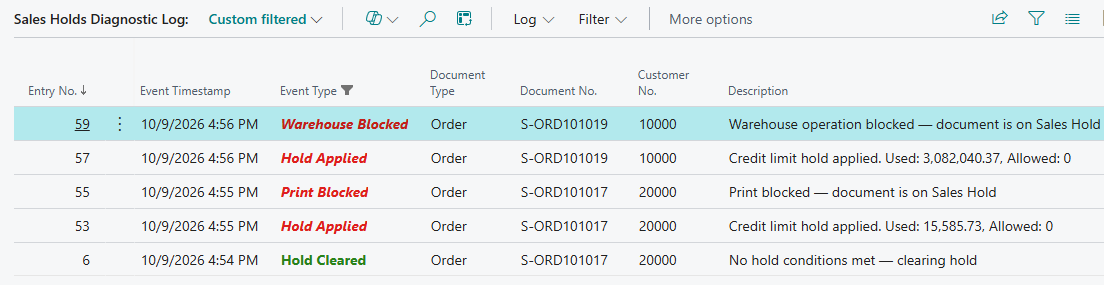
The log lists the newest entries first. Each entry shows when the event happened, the user, the Event Type, the document and customer, a description, and the hold status, approval status, and amounts before and after the event. Entries of type Hold Applied, Release Blocked, Post Blocked, Warehouse Blocked, and Print Blocked are shown in red. Entries of type Hold Cleared, Approval Detected, and Admin Approval are shown in green.
A Warehouse Blocked entry is kept only when the warehouse action was started from the Sales Order or the Sales Orders list. When the action is started from a warehouse page, such as Get Source Documents on a Warehouse Shipment, the block message appears but the log entry is not saved, for the same reason that the hold is not saved on the order. See When a document is on hold.
The Sales Holds Diagnostic Log page has these actions:
| Action | What it does |
|---|---|
| Clear Diagnostic Log | Deletes all entries after you confirm |
| Cleanup Expired Entries | Deletes entries older than Diagnostic Log Retention Days and shows how many were deleted |
| Filter to Document | Shows only the entries for the document on the selected entry |
| Clear Filters | Removes all filters and shows all entries |
Clear Diagnostic Log is also available on the Sales Holds Setup page.
Troubleshooting
Section titled “Troubleshooting”Holds are not being applied
Section titled “Holds are not being applied”Documents open normally for customers who are over their credit limit or have past due invoices, but Hold Status shows No Hold.
| Check | What to do |
|---|---|
| Sales Holds Setup has been opened | Sales Holds does not evaluate any document until Sales Holds Setup has been opened once. Open it and review the settings |
| The license is valid | If the license is not valid, Sales Holds does not evaluate documents and shows no message. Open Sales Holds Setup and choose Sync License, or contact support@bluedragonflyllc.com |
| Hold evaluation is enabled | In Sales Holds Setup, confirm Enforce Credit Limit Sales Hold or Enforce Past Due Sales Hold is on |
| The document type is enabled | In Sales Holds Setup, confirm the relevant document type is enabled under Sales Documents. If the Hold Status field is missing from the page entirely, that document type is off |
| Customer-level toggles | In customer-level mode, open the Customer Card and confirm the relevant toggle is on under Sales Hold Options |
| Bypass flags | In company-level mode, open the Customer Card and confirm neither flag is on under Bypass Sales Hold Options |
| The customer has a credit limit | A customer with no Credit Limit (LCY) and exposure of zero is never over the limit |
| Evaluation has not run yet | Evaluation runs when the document changes, and before it is released, posted, printed, or used in a warehouse action. Edit a sales line and check the field again |
| The document was released clean | If Released Clean At has a value, the document is exempt from re-evaluation. See Clean release tracking |
| The document is approved | An approved document is not re-evaluated while Allow Changes to Approved Documents is on |
A warehouse action was blocked but the order shows No Hold
Section titled “A warehouse action was blocked but the order shows No Hold”The warehouse action was started from a warehouse page. When Sales Holds blocks an action started from a warehouse page, the hold is not saved on the Sales Order, so the order can still show No Hold. The customer is over a limit, and the order is not clear to process. The hold is saved on the order the next time the order is changed, released, or posted, or when a warehouse or print action is started from the Sales Order itself. See When a document is on hold.
The Request Approval action is missing or unavailable
Section titled “The Request Approval action is missing or unavailable”| Check | What to do |
|---|---|
| The workflow was never created | In Sales Holds Setup, choose Actions, then Create Default Workflow |
| The workflow is disabled | Search for Workflows, locate BD-SHSALESHOLDS, and select Enabled. The workflow is created disabled |
| No approvers assigned | Search for Workflow User Groups and add at least one user to SALESHOLDAPPR |
| A request is already pending | If Approval Status shows Pending Approval, wait for a decision or cancel the existing request |
| User permissions | Confirm the user has a role that allows sending approval requests |
A user cannot open Sales Holds Setup
Section titled “A user cannot open Sales Holds Setup”Assign the Sales Holds Setup (SHL HOLDSETUP BLD) permission set.
A user cannot edit customer hold fields or bypass flags
Section titled “A user cannot edit customer hold fields or bypass flags”Assign the Sales Holds Manage (SHL HOLDMANAGE BLD) or the Sales Holds Credit Limit (SHL HOLDCREDIT BLD) permission set. Both include permission to edit customers.
A user cannot edit the Credit Limit field
Section titled “A user cannot edit the Credit Limit field”This is by design. Assign the Sales Holds Credit Limit (SHL HOLDCREDIT BLD) permission set to the users who should be able to change credit limits.
A document is still blocked after approval
Section titled “A document is still blocked after approval”| Check | What to do |
|---|---|
| Hold Status and Approval Status | Both should show Approved. If Hold Status still shows a hold type, the workflow did not complete |
| Approval entry state | Search for Approval Entries, filter to the document, and check the Status column. An Open entry means the approval chain is not finished |
| Who the request is with | The request is first opened for the member of SALESHOLDAPPR with the lowest Sequence No. With the workflow as created by Create Default Workflow, the hold clears when that member, or an approval administrator, approves. If the workflow was changed so that each approver must approve, the Open entry in Approval Entries shows whose approval is next |
An old order was held unexpectedly
Section titled “An old order was held unexpectedly”The order was released before Sales Holds was installed and was evaluated the first time it was changed, posted, printed, or used in a warehouse action. Open Sales Holds Setup, choose Previously Released Orders, select the affected orders, and choose Actions, then Admin Approve. See Previously released orders.
A new document for the same customer is held again
Section titled “A new document for the same customer is held again”Each sales document is evaluated on its own. Approving one document does not change the customer’s credit or past due position, so the next document is evaluated fresh. Resolve the underlying cause with your credit team, by raising the credit limit or applying a payment.
Quick reference
Section titled “Quick reference”For sales users
Section titled “For sales users”| Situation | What to do |
|---|---|
| Document shows Credit Limit Hold or Past Due Hold | Choose Request Approval, then Send Approval Request |
| Waiting for approval | Check Approval Status for Pending Approval |
| Document approved | Proceed normally: post, ship, print |
| Approval rejected | Contact the approver, adjust the document, resubmit |
| Need to cancel a pending request | Choose Request Approval, then Cancel Approval Request |
| Want to see all held documents | Search for Sales Holds |
For approvers
Section titled “For approvers”| Situation | What to do |
|---|---|
| Received an approval request | Open Requests to Approve and review the document |
| Ready to approve | Choose Approve. The document is released and unblocked immediately |
| Need to decline | Choose Reject. The requestor is notified |
| Want to forward to someone else | Choose Delegate |
| Several documents to clear at once | Open Sales Holds, select them, and choose Approve Selected |
For administrators
Section titled “For administrators”| Task | Where to go |
|---|---|
| Enable or disable hold types | Sales Holds Setup, Sales Hold Configuration |
| Choose which document types are evaluated | Sales Holds Setup, Sales Documents |
| Set company-wide tolerances | Sales Holds Setup, Tolerance |
| Set customer-specific tolerances | Customer Card, Sales Hold Options |
| Flag a customer to bypass holds | Customer Card, Bypass Sales Hold Options |
| Control who can edit credit limits | Assign the Sales Holds Credit Limit permission set |
| Create the approval workflow | Sales Holds Setup, Create Default Workflow |
| Enable the workflow | Tell Me: Workflows, then BD-SHSALESHOLDS |
| Assign workflow approvers | Tell Me: Workflow User Groups, then SALESHOLDAPPR |
| Clear released orders that have no hold | Sales Holds Setup, Previously Released Orders |
| Troubleshoot a hold decision | Sales Holds Setup, Enable Diagnostic Logging, then View Diagnostic Log |
| Delete old diagnostic log entries | Sales Holds Diagnostic Log, Cleanup Expired Entries |