
Corporate Direct Debit BAI2 Import User Guide
Corporate Direct Debit BAI2 Import product page
This extension takes a BAI2 bank file containing corporate direct debit (and related outbound) transactions and turns the matched payments into vendor payment journal lines, ready for you to post in Business Central.
1. How the Process Works
Section titled “1. How the Process Works”The process runs in five stages. Each stage is described in detail in the sections that follow.
-
Import. You upload a BAI2 file. The extension stores the file, checks it is not a duplicate, and parses it into one import line per debit transaction. Each line is classified by its BAI2 transaction type code, and the remittance text is parsed to extract the originator name, reference, and company ID. After parsing, the import status is Parsed.
-
Validate. The extension matches each line to a vendor using the vendor’s BAI2 Bank IDs, then matches the line to one open vendor invoice, or, when Match Multiple Invoices is enabled, to a set of open invoices that together add up to the payment amount. The result of matching is recorded on each line as a Validation Status. When validation has run, the import status becomes Validated.
-
Resolve exceptions. Any line that did not match cleanly is flagged. You correct it by selecting a vendor or invoice manually, by allocating the payment across several invoices in the BAI2 Invoice Allocations worksheet, by excluding it, or by re-running validation after you fix the underlying data.
-
Create payment journal lines. Lines with a Valid status are transferred to a payment journal batch as vendor payment lines, each applied to its matched invoice or invoices. The import status becomes Transferred.
-
Post. You post the payment journal using the standard Business Central posting routine.
The import keeps a record of every file you bring in, with statistics on transaction counts and amounts, so you can audit what was imported and when.
2. One-Time Setup
Section titled “2. One-Time Setup”Goal: Configure the defaults that control vendor matching, invoice matching, and the payment method applied to generated journal lines, and populate the vendor BAI2 Bank IDs that drive automatic vendor matching.
Prerequisites:
- The BAI2 Import permission set assigned to your user.
- At least one Payments-type general journal template and batch, if you intend to record a default.
Steps:
- Choose the Tell Me icon, enter Corporate Direct Debit BAI2 Import Setup, and open the page.
- The page opens on the single setup record. Choose the edit (pencil) icon to make changes.
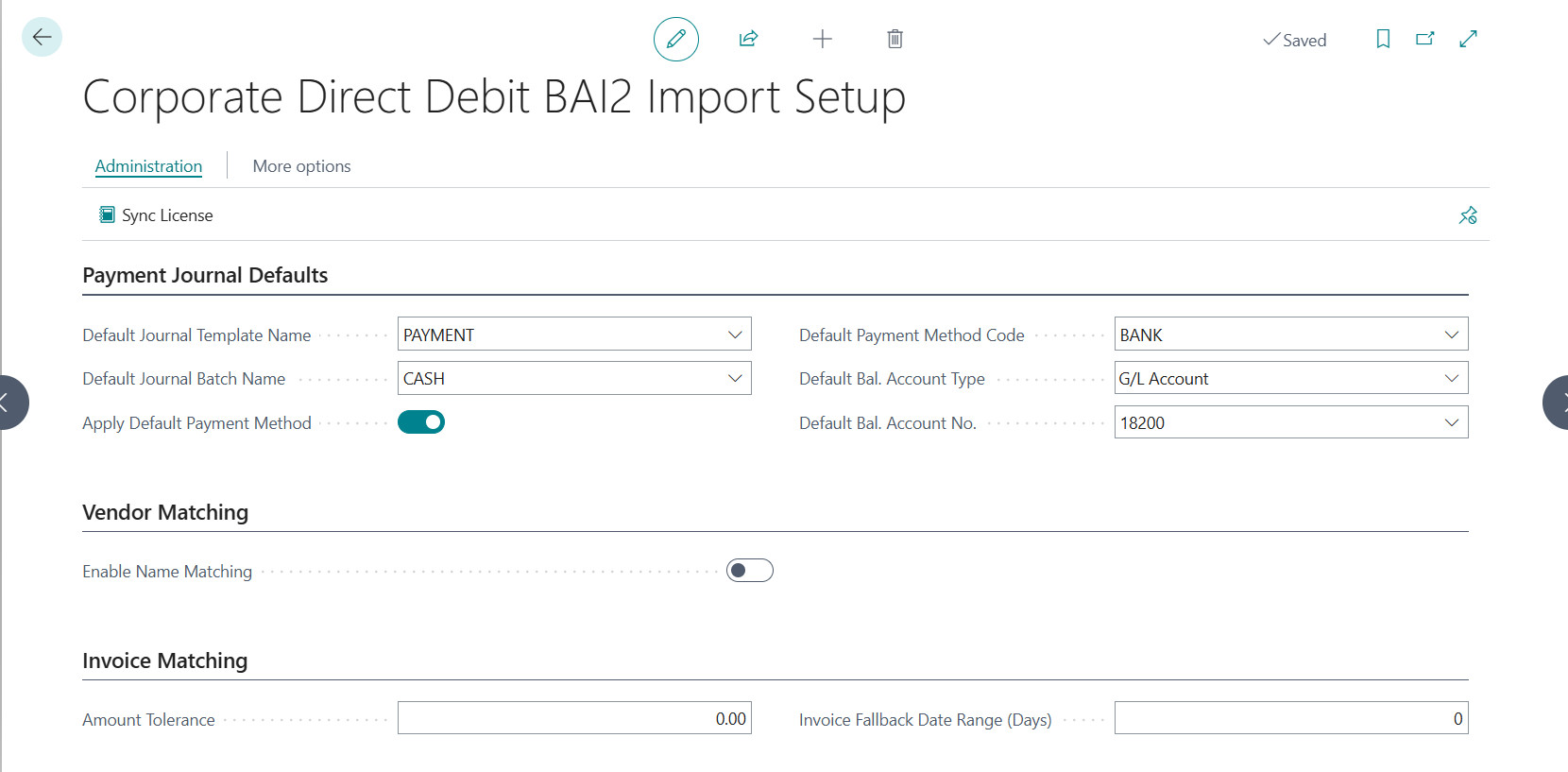
Payment Journal Defaults
Section titled “Payment Journal Defaults”- Default Journal Template Name. The Payments-type general journal template you want associated with this import. Only templates of type Payments can be selected.
- Default Journal Batch Name. The batch within that template. Clearing the template clears the batch.
- Apply Default Payment Method. When turned on, every payment journal line created from an import is assigned the Default Payment Method Code. Turn it off to leave the Payment Method Code blank on the generated lines so it follows the vendor’s own default.
- Default Payment Method Code. The payment method code applied to each generated line. This field is enabled only when Apply Default Payment Method is on.
- Default Bal. Account Type. Whether the balancing account applied to generated payment journal lines is a G/L Account or a Bank Account. Changing the type clears any value already entered in Default Bal. Account No.
- Default Bal. Account No. The balancing account applied to each payment journal line created from a BAI2 import. The lookup lists bank accounts when the type is Bank Account, or posting G/L accounts that allow direct posting when the type is G/L Account. Leave this blank to leave the balancing account empty on the generated lines, so each line carries no balancing account of its own.
Vendor Matching
Section titled “Vendor Matching”- Enable Name Matching. Controls whether vendor matching is allowed to fall back to the vendor name and search name when no vendor is found by company ID (the vendor’s BAI2 Bank IDs).
- Off (recommended for accuracy): A vendor is matched only by company ID. If no company-ID match exists, the line is flagged Vendor Not Found for manual review. This prevents an incorrect name-based match.
- On: When no company-ID match exists, the extension also tries an exact normalized match on the vendor Name, then the vendor Search Name, then a single partial name match. Use this only if your vendor Bank IDs are not reliably populated, and expect more lines to land in Multiple Vendors review.
Invoice Matching
Section titled “Invoice Matching”Invoice matching runs a sequence of rules for the matched vendor. Each rule runs only when its toggle is on, so you can disable any rule that does not fit how your bank files are structured. The rules and how they behave are described in Step 2.
- Match by Reference. Tries the line’s parsed reference ID against the External Document No. of the vendor’s open invoices (rule 1). Turn this off when the references in your bank files never correspond to your invoice numbers.
- Match by Payment Information Reference. Tries a reference extracted from the parsed payment information (the structured
RMRsegment) against the External Document No. of the vendor’s open invoices (rule 2). - Match by Document No. Tries the line’s parsed reference ID against the Document No. of the vendor’s open invoices (rule 3).
- Match by Amount and Date. Falls back to amount matching when no rule above finds an invoice (rule 4): open invoices whose Due Date is within the Invoice Fallback Date Range of the payment date and whose remaining amount equals the payment amount within the Amount Tolerance. When more than one invoice qualifies, the line is flagged Multi-Invoice Review for manual selection.
- Match Multiple Invoices. Allows one payment to be matched to several open invoices whose remaining amounts add up to the payment amount within the Amount Tolerance (rule 5). This covers vendors that withdraw one direct debit for several invoices. Candidate invoices come from the Invoice Fallback Date Range window; only invoices whose document dates lie within the Multi-Invoice Date Proximity (Days) of each other are combined. Turn this off if your vendors always debit one invoice per transaction and you prefer every multi-invoice case to be reviewed manually.
- Amount Tolerance. The largest allowed difference between an open invoice’s remaining amount and the imported payment amount for the line to count as a match. A difference greater than this flags the line as Amount Mismatch. Set it to a small value such as
0.01to require an effectively exact match, or raise it to absorb minor rounding or fee differences. Defaults to0.01when left blank. - Invoice Fallback Date Range (± Days). How many days before or after the payment date an open invoice’s Due Date may fall and still be considered by the Match by Amount and Date rule and the Match Multiple Invoices rule. A wider range catches debits that land further from the due date but raises the chance of an ambiguous match. This field is enabled only when Match by Amount and Date or Match Multiple Invoices is on. The maximum is 365 days. Defaults to
14when left blank. - Multi-Invoice Date Proximity (Days). The maximum number of days between the document dates of invoices that may be combined into one multi-invoice match.
0(the default) means only invoices with the same document date are combined. Raise it if a vendor’s combined debits cover invoices issued on different days. This field is enabled only when Match Multiple Invoices is on.
Vendor Bank IDs
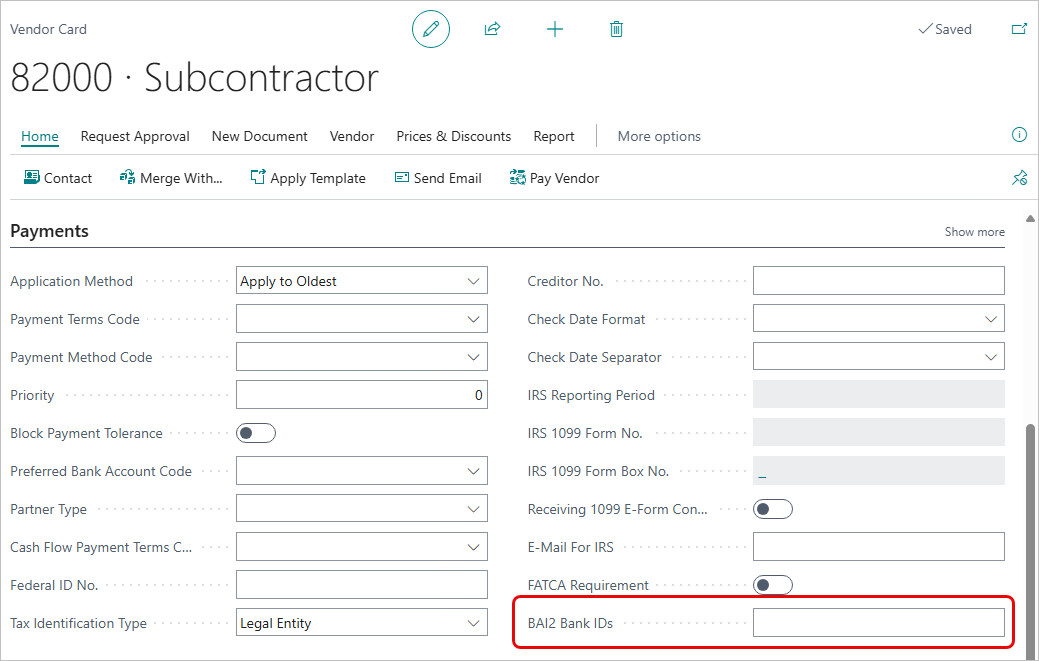
Section titled “Vendor Bank IDs”Automatic vendor matching depends on each vendor’s BAI2 Bank IDs. This field is on the standard Vendor Card, on the Payments FastTab.
- BAI2 Bank IDs. The bank company IDs (Bank IDs) under which the vendor originates BAI2 direct debit transactions, separated by commas. The import matches a transaction to this vendor when the line’s parsed Bank ID (Company ID) equals any ID in the list.
You can populate this field in three ways:
- Enter the IDs manually on the Vendor Card.
- Use the Assign Vendor action while resolving exceptions, which saves the line’s Bank ID to the vendor for you (see Step 3).
- Use the Copy Bank IDs from VAT Reg. No. action on the Setup page (see below).
Setup Page Actions
Section titled “Setup Page Actions”- Copy Bank IDs from VAT Reg. No. Copies each vendor’s VAT Registration No. into its blank BAI2 Bank IDs field. Use this once after upgrading from a version that matched BAI2 transactions on the VAT Registration No., so previously learned IDs keep auto-matching. Vendors that already have BAI2 Bank IDs are not changed, and the VAT Registration No. itself is not changed. The action asks you to confirm, then reports the number of vendors updated.
- Sync License. Synchronizes the extension license for the current environment.
Expected result: The setup record is saved and is used by every subsequent import and validation run. Vendors carry the Bank IDs needed for automatic matching.
3. Step 1: Import a BAI2 File
Section titled “3. Step 1: Import a BAI2 File”Goal: Upload a BAI2 file and parse it into staged import lines.
Prerequisites:
- The BAI2 Import permission set.
- A BAI2 file (
.baior.bai2) from your bank.
Steps:
- Choose the Tell Me icon, enter Corporate Direct Debit BAI2 Import, and open the list.

- Choose Import New File.
- In the file dialog, select your BAI2 file and confirm.
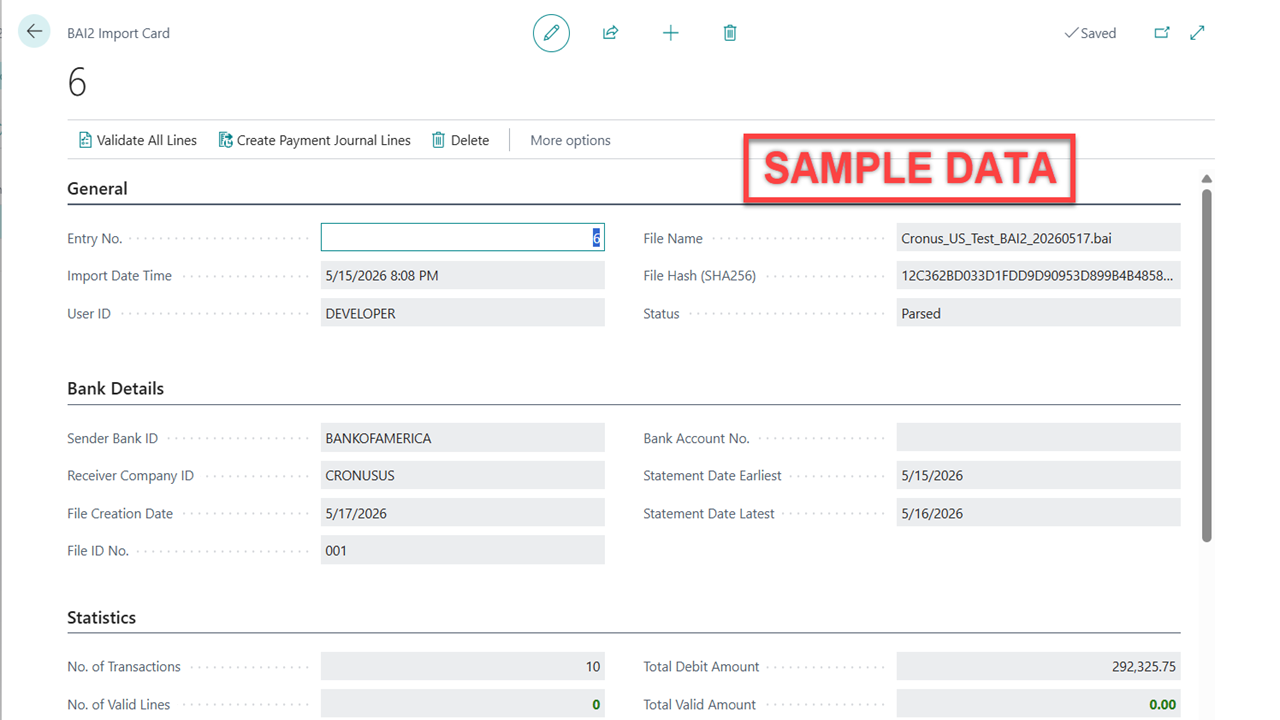
- The file is uploaded and parsed, and the Corporate Direct Debit BAI2 Import Card opens on the new import.
What happens during import:
- The extension computes a SHA256 hash of the file and stores it in File Hash (SHA256). If a file with the same hash was imported before, the import is rejected with a message naming the existing entry. This prevents accidental double-imports.
- The file header populates Sender Bank ID, Receiver Company ID, File Creation Date, and File ID No..
- Each detail (type-16) transaction becomes one line. Continuation (type-88) remittance text is appended to its line and parsed for the originator name, description, reference ID, individual name, company ID, and payment information.
- Each line is classified by its Transaction Type Code. Sweep and unrecognized transaction types are marked Excluded and are left out of matching and transfer. See Transaction Categories.
- Statement Date Earliest and Statement Date Latest are set from the group dates in the file.
- The import Status is set to Parsed.
Expected result: A new import appears in the list with status Parsed, and the card shows the parsed header, statistics, and lines. Every transaction in the file is imported.
4. Step 2: Validate the Lines
Section titled “4. Step 2: Validate the Lines”Goal: Match each non-excluded line to a vendor and to one or more open invoices.
Prerequisites:
- An imported file (status Parsed).
- Vendors that carry BAI2 Bank IDs, and open vendor invoices that the lines can match against.
Steps:
- Open the import from the Corporate Direct Debit BAI2 Import list.
- Choose Validate All Lines.
You can also start validation directly from the list with Validate All Lines, without opening the card.
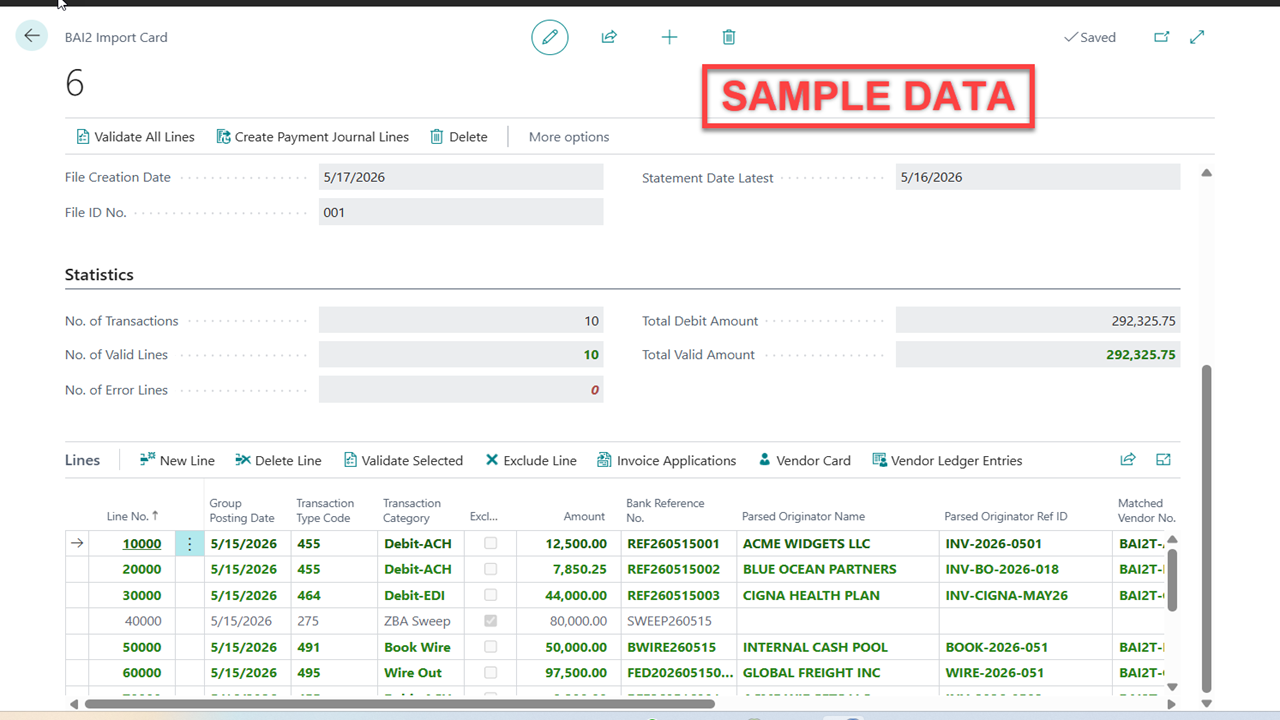
What happens during validation:
Each validation run first returns the line to a clean state — matched values, multi-invoice flags, and any allocation rows from a prior run are cleared — so every re-run produces the same result as a first validation. For each non-excluded line, the extension then finds a vendor, then finds the open invoice or invoices for that vendor.
2 line(s) have manually entered invoice allocations. Re-validating deletes those allocations and re-derives the match. Continue?
Vendor matching, in order:
- By Bank ID (company ID). If the line has a Bank ID (parsed company ID), the extension looks for a vendor whose BAI2 Bank IDs list contains that ID as one of its comma-separated entries. Exactly one match is used. More than one vendor listing the same ID flags the line Multiple Vendors. If none, it then checks for a vendor whose No. equals the Bank ID.
- By name (only if Enable Name Matching is on). The extension normalizes the Parsed Originator Name and tries an exact match on the vendor Name, then the vendor Search Name, then a single partial-name match. More than one partial match flags the line Multiple Vendors.
If no vendor is found, the line is flagged Vendor Not Found.
Invoice matching, in order, for the matched vendor. Each rule runs only when its toggle is enabled in Setup:
- By reference (Match by Reference). The Parsed Originator Ref ID is matched against the External Document No. of open vendor invoices. A single open match is used. If only a closed (already-applied) invoice matches, the line is flagged Invoice Already Applied.
- By payment-information reference (Match by Payment Information Reference). If the reference did not match, a reference extracted from the parsed payment information (an
RMRsegment) is tried the same way. - By document number (Match by Document No.). As a fallback, the reference is matched against the invoice Document No..
- By amount and date (Match by Amount and Date). For any line the rules above did not match, the extension matches by vendor and exact amount (within the Amount Tolerance) among open invoices whose Due Date falls within the Invoice Fallback Date Range (± days) of the transaction’s payment date. If exactly one invoice qualifies, the payment is applied to it; if more than one qualifies, the line is flagged Multi-Invoice Review for manual selection.
- By invoice combination (Match Multiple Invoices). When no single invoice explains the payment, the extension looks for a set of open invoices — same currency, due dates within the Invoice Fallback Date Range window, document dates within the Multi-Invoice Date Proximity (Days) of each other — whose remaining amounts add up to the payment amount within the Amount Tolerance. Exactly one qualifying set makes the line Valid and creates one allocation row per invoice. More than one qualifying set flags the line Multi-Invoice Review.
When one reference names several open invoices (rules 1 and 2) and Match Multiple Invoices is on, the extension checks whether those invoices’ remaining amounts add up to the payment amount. If they do, the line becomes Valid with an allocation row per invoice; if not, it is flagged Multi-Invoice Review.
When a single invoice is matched, the imported amount is compared with the invoice’s remaining amount using the Amount Tolerance. Within tolerance, the line is Valid. Outside tolerance, it is Amount Mismatch.
A line matched to several invoices shows Has Multi-Invoice Apply turned on, its Matched Invoice Amount shows the allocated total, and its Validation Message reads, for example:
Matched vendor 10000 across 3 invoices.
Effect on the import: After validation, an import that was Imported or Parsed moves to Validated. The No. of Valid Lines, No. of Error Lines, and Total Valid Amount statistics update.
Expected result: Every non-excluded line shows a Validation Status and a Validation Message describing the result. Valid lines are shown in green; vendor problems in red; invoice problems and lines needing review in amber; not-yet-validated lines in blue; excluded lines in grey.
5. Understanding Line Validation Results
Section titled “5. Understanding Line Validation Results”Each line carries a Validation Status and a plain-language Validation Message. The row colour reflects the status.
| Validation Status | Row colour | Meaning |
|---|---|---|
| Valid | Green | Matched to a vendor and to one open invoice within amount tolerance, or to a set of invoices whose amounts add up to the payment. Eligible for transfer. |
| Pending | Blue | Not yet validated. |
| Vendor Not Found | Red | No vendor matched the Bank ID (or name, if name matching is on). |
| Multiple Vendors | Red | More than one vendor matched. Manual selection required. |
| Invoice Not Found | Amber | A vendor matched, but no open invoice matched the reference. |
| Amount Mismatch | Amber | An invoice matched, but its remaining amount differs from the payment by more than the tolerance. |
| Invoice Already Applied | Amber | The matched invoice is already applied or closed. |
| Multi-Invoice Review | Amber | Several open invoices match the reference, or more than one set of invoices adds up to the payment amount. Review the breakdown with Invoice Allocations. |
| Excluded | Grey | The line is excluded from matching and transfer (sweep or unrecognized transaction type, or excluded manually). |
A Multi-Invoice Review line carries one of two messages telling you which case you are in:
Multiple open invoices match — review application breakdown.
More than one set of open invoices adds up to the payment amount — review application breakdown.
Lines matched to several invoices show the Has Multi-Invoice Apply check mark, and Matched Invoice Amount shows the allocated total rather than a single invoice’s remaining amount.
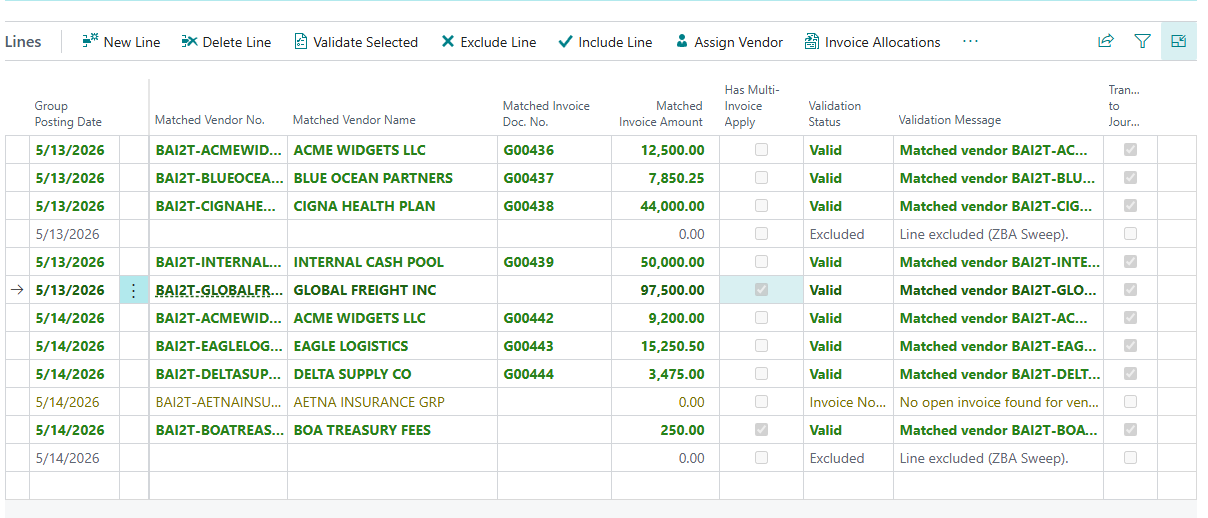
Only lines with status Valid are transferred to the payment journal.
6. Step 3: Resolve Exceptions
Section titled “6. Step 3: Resolve Exceptions”Goal: Bring every line you intend to pay to a Valid status, and exclude the rest.
Prerequisites: A validated import with one or more exception lines.
The Lines part provides per-line actions. Select one or more lines, then choose the action.
Set the vendor manually
Section titled “Set the vendor manually”For a Vendor Not Found or Multiple Vendors line:
- In the Matched Vendor No. field, choose the lookup and select the correct vendor, or type the vendor number.
- The line revalidates automatically, attempting invoice matching for the vendor you selected.
This sets the vendor for the current line only. The next time the same originator appears in an import, you will have to set the vendor again. To teach the extension to recognise the originator automatically, use Assign Vendor instead.
Assign a vendor and remember it (Assign Vendor)
Section titled “Assign a vendor and remember it (Assign Vendor)”The Assign Vendor action does what Set the vendor manually does, and additionally saves the line’s Bank ID (the parsed company ID) onto the chosen vendor’s BAI2 Bank IDs so that this and every future import from the same originator match the vendor automatically. Use it on a Vendor Not Found or Multiple Vendors line when you want the match to stick.
-
Select the unmatched line.
-
Choose Assign Vendor from the Lines toolbar.
-
In the Vendor List that opens, select the correct vendor and choose OK.
-
The extension responds according to the line and the vendor:
-
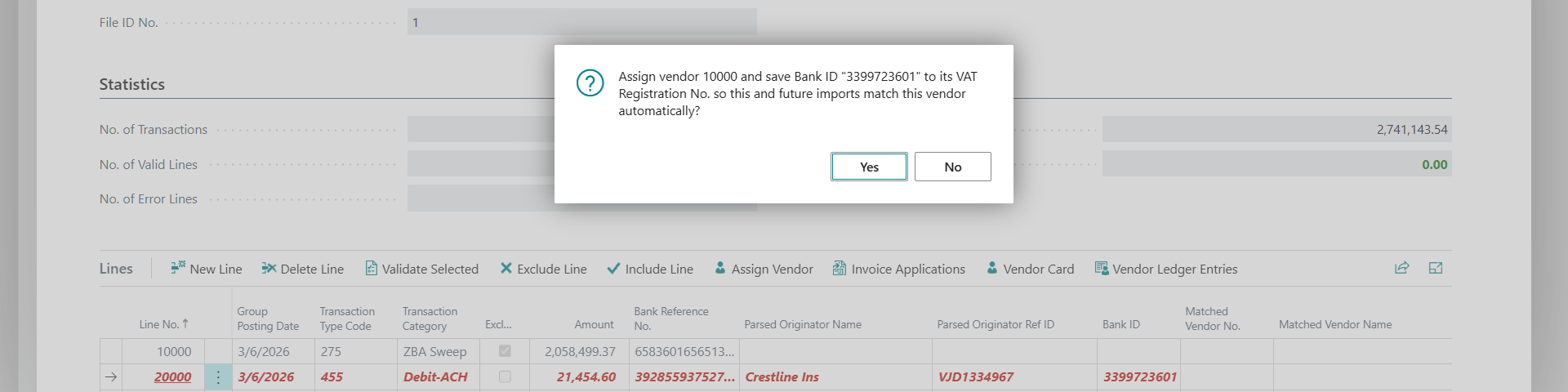
The line has a Bank ID the vendor does not already list. You are asked to confirm:
Assign vendor 10000 and add Bank ID “3399723601” to its BAI2 Bank IDs so this and future imports match this vendor automatically?
Choose Yes to add the Bank ID to the vendor’s BAI2 Bank IDs list and revalidate the line. The line then matches to its open invoice and turns Valid. From now on, lines from the same originator match this vendor on their own. A vendor can hold several Bank IDs; the action appends the new ID and keeps the existing ones.
-
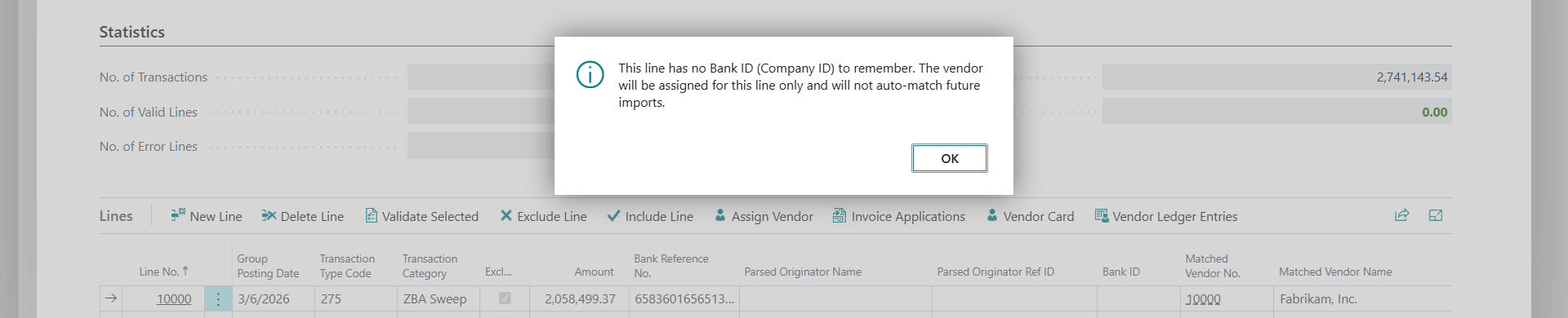
The line has no Bank ID to remember. The extension shows an information message and assigns the vendor for this line only:
This line has no Bank ID (Company ID) to remember. The vendor will be assigned for this line only and will not auto-match future imports.
Choose OK. The vendor is set on the line, but because there is no company ID to store, future imports are not auto-matched.
-
The vendor already lists this Bank ID. No confirmation is needed. The line is revalidated against that vendor.
-
Set the invoice manually
Section titled “Set the invoice manually”For an Invoice Not Found line, or a Multi-Invoice Review line you want to settle against a single invoice, once a vendor is set:
- In the Matched Invoice Doc. No. field, choose the lookup. The lookup lists open invoices for the matched vendor.
- Select the invoice. The line revalidates against the selected invoice and its amount.
- To inspect the chosen invoice, choose the drill-down on Matched Invoice Doc. No. to open the vendor ledger entry.
To settle a Multi-Invoice Review line against several invoices, use Invoice Allocations instead (see below).
Allocate a payment across several invoices (Invoice Allocations)
Section titled “Allocate a payment across several invoices (Invoice Allocations)”Use the Invoice Allocations action to review the invoice breakdown of a multi-invoice match, or to build one manually — for example on a Multi-Invoice Review or Invoice Not Found line where one direct debit covers several invoices.
A vendor must be set on the line first. If it is not, the action shows:
Assign a vendor to this line first — invoice allocations are entered per vendor.
- Select the line and choose Invoice Allocations from the Lines toolbar.
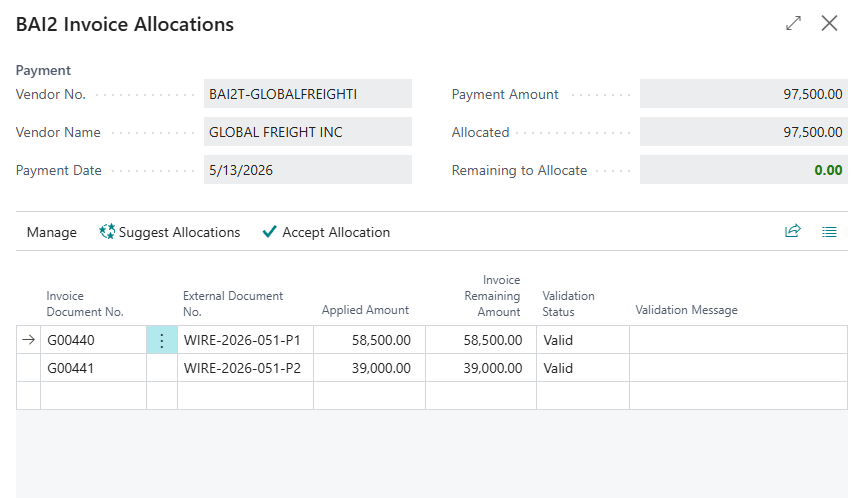
- The BAI2 Invoice Allocations worksheet opens. The Payment group at the top shows the read-only payment context: Vendor No., Vendor Name, Payment Date, Payment Amount, the Allocated total, and Remaining to Allocate. Remaining to Allocate shows green when it reaches zero, amber otherwise.
-
Build the allocation rows:
-
Choose Suggest Allocations to fill the rows with the vendor’s open invoices whose Due Date falls within the Invoice Fallback Date Range window of the payment date. Each Applied Amount defaults to the invoice remaining amount, capped at what is still unallocated. The action asks first:
Replace the current allocation rows with the vendor’s open invoices due around the payment date?
Then remove the rows you do not want and adjust the amounts.
-
Or enter rows yourself. In Invoice Document No., use the lookup to pick from the vendor’s open invoices; External Document No. and Invoice Remaining Amount fill in, and Applied Amount defaults the same way.
-
-
Adjust each Applied Amount as needed. It may be less than the invoice remaining amount, but the total of all rows must equal the Payment Amount within the Amount Tolerance.
-
Choose Accept Allocation. The extension validates every row (the invoice must be open, belong to the matched vendor, be in the payment’s currency, be allocated only once, and the applied amount must be positive and no greater than the invoice remaining amount) and checks that the allocated total equals the payment amount within the Amount Tolerance. On success:
Allocation accepted: the payment is applied to 2 invoice(s). The line is now Valid.
The line turns Valid with the message
Manually allocated to 2 invoice(s)., Has Multi-Invoice Apply is turned on, and Matched Invoice Amount shows the allocated total. If a row has a problem, the action stops with an error describing it and writes the problem into the row’s Validation Message.
Re-run matching
Section titled “Re-run matching”After you correct underlying data (for example, you add a vendor’s Bank ID or post a missing invoice):
- Choose Validate Selected to re-run matching on the selected lines, or
- Choose Validate All Lines to re-run matching on the whole import.
Exclude a line
Section titled “Exclude a line”For lines you do not want to pay (for example, a transaction that should not produce a payment):
- Select the lines.
- Choose Exclude Line.
- The lines are marked Excluded and are dropped from matching and transfer. Excluded lines are shown in grey.
Include a line
Section titled “Include a line”To reverse a previous exclusion:
- Select the excluded lines.
- Choose Include Line.
- The Excluded flag is cleared and the lines are re-validated, attempting vendor and invoice matching again.
Review the matched vendor
Section titled “Review the matched vendor”- Choose View Vendor to open the matched vendor’s card.
- Choose Vendor Ledger Entries to see the matched vendor’s open ledger entries.
Expected result: Every line you intend to pay shows Valid; the remainder are Excluded. The No. of Error Lines statistic reads zero.
7. Step 4: Create Payment Journal Lines
Section titled “7. Step 4: Create Payment Journal Lines”Goal: Transfer valid lines to a payment journal as applied vendor payments.
Prerequisites:
- An import with one or more Valid, non-excluded, not-yet-transferred lines.
- A Payments-type general journal template and batch. The batch should have a No. Series so document numbers are assigned.
Steps:
- On the Corporate Direct Debit BAI2 Import Card, choose Create Payment Journal Lines.
- When prompted, select the Gen. Journal Batch to receive the lines and confirm. If you cancel without selecting a batch, the transfer stops.
- The extension creates one payment journal line per valid line and confirms with a message showing the count and the batch.
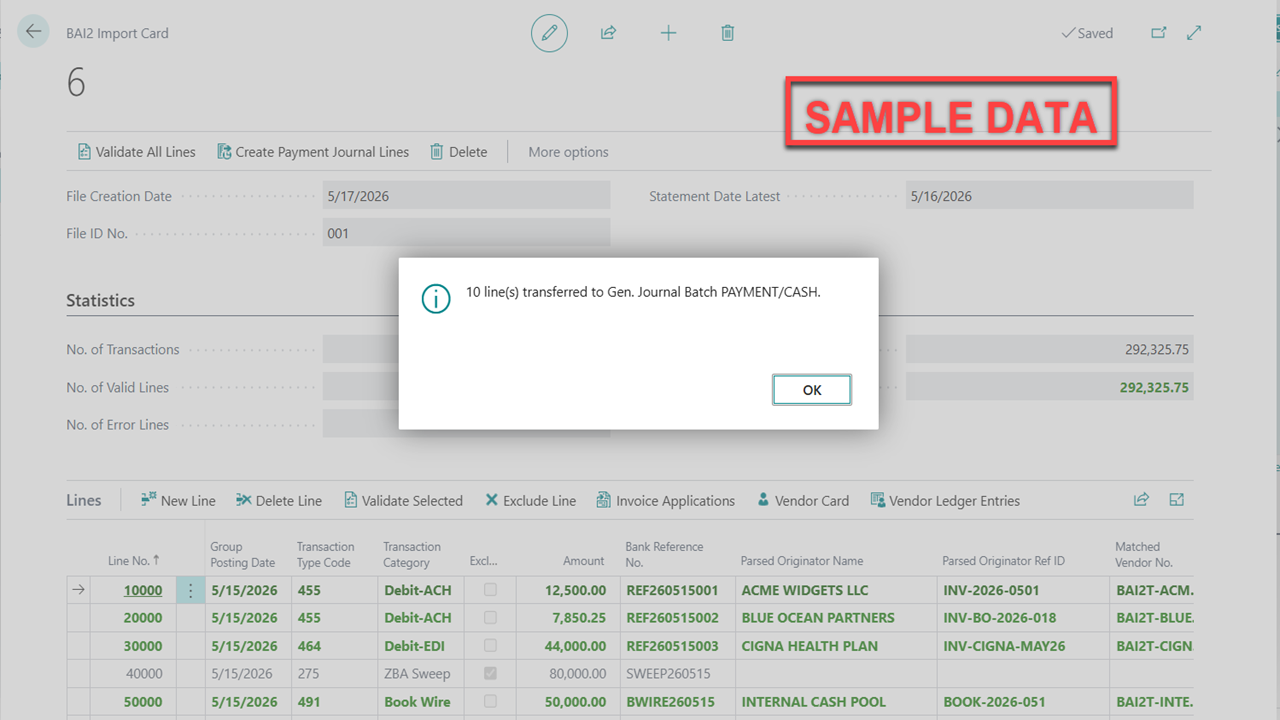
What each created line contains:
-
Document Type is Payment, with a document number drawn from the batch’s number series, dated to the line’s Group Posting Date.
-
Account Type Vendor, Account No. the matched vendor.
-
Amount set to the line’s imported payment amount.
-
For a single-invoice line, Applies-to Doc. No. set to the matched invoice, so the payment is applied on posting.
-
For a multi-invoice line, the payment is applied to every allocated invoice using an Applies-to ID, with each invoice’s Amount to Apply set to its allocated amount. Before creating the journal line, the extension re-checks the allocation against the current ledger state. If an allocated invoice has been closed or changed since validation, the transfer stops with an error:
Line 110000 on import 5 cannot be transferred because its invoice allocation is no longer valid: invoice 108031 is no longer open. Re-validate the line or adjust the allocation.
-
External Document No. set to the bank reference, and a description built from the bank reference, originator name, and parsed description.
-
Payment Method Code set from Default Payment Method Code when Apply Default Payment Method is enabled in Setup.
-
Bal. Account Type and Bal. Account No. set from Default Bal. Account Type and Default Bal. Account No. when a default balancing account is configured in Setup. When Default Bal. Account No. is blank, the balancing account is left empty on the line.
Effect on the import: Each transferred line is marked Transferred to Journal and records its template, batch, and document number. The import Status moves to Transferred.
Expected result: A confirmation message reports the number of lines transferred and the target batch. The lines now exist in the selected payment journal batch.
8. Step 5: Post the Payment Journal
Section titled “8. Step 5: Post the Payment Journal”Goal: Post the generated vendor payments.
Prerequisites: Payment journal lines created by Step 4.
Steps:
- Open the payment journal batch you transferred to.
- Review the lines. Each is applied to its matched invoice, or, for a multi-invoice payment, to every allocated invoice.
- Post the journal using the standard posting action.
Expected result: Vendor payments are posted and applied to their invoices. The imported transactions are now reflected in your vendor ledger.
9. Managing Imports
Section titled “9. Managing Imports”The Corporate Direct Debit BAI2 Import list shows every import with its statistics and status.
- Entry No., Import Date Time, File Name, the statement date range, Bank Account No., transaction and line counts, Total Debit Amount, and Status.
- No. of Valid Lines is shown in green; No. of Error Lines in red.
Actions available from the list:
- Import New File. Start a new import (see Step 1).
- Validate All Lines. Re-run matching on the selected import.
- Delete Import. Delete the selected import and all of its lines, after a confirmation prompt.
Actions available from the card:
- Validate All Lines, Create Payment Journal Lines, and Delete. Deleting from the card removes the import and its lines, then closes the card.
If parsing fails, the import Status is Error and the card shows a Parse Error Message describing the problem.
10. Test Data Generator (Sandbox Only)
Section titled “10. Test Data Generator (Sandbox Only)”Use this only in a sandbox environment. The generator creates vendors and posts purchase invoices to give an imported file something to match against. Running it against production data would post real invoices. The action refuses to run outside a sandbox and shows a message if you attempt it.
Goal: For a chosen import, create any missing vendors and post open purchase invoices so that each non-excluded line has a matchable vendor and invoice.
Prerequisites:
- A sandbox environment.
- An existing import to read lines from.
- A reference vendor whose posting setup can be cloned.
- A Purchases-type general journal template and batch, the batch having a number series.
- A posting G/L account.
Steps:
-
Choose the Tell Me icon, enter Corporate Direct Debit BAI2 Test Data Generator, and open the page.
-
Complete the fields:
Source Import
- Import Header Entry No. The import whose lines are read. The generator creates a vendor and a posted open invoice for each non-excluded line so the validator can match them.
Vendor Setup
- Reference Vendor No. An existing vendor whose posting groups (Vendor Posting Group, Gen. Bus., VAT Bus., Payment Terms, Payment Method) are cloned onto any new vendor the generator creates.
- Vendor No. Prefix. The prefix used when building a new vendor number. The suffix is derived from the parsed originator name. Defaults to
BAI2T-.
Journal / Posting
- Journal Template Name. A Purchases-type template used to post the seeded invoices. Changing it clears the batch.
- Journal Batch Name. The batch used to post the seeded invoices. The batch must have a number series.
- Balancing G/L Account No. The expense account used as the balancing side of each seeded invoice. It must be a posting account with direct posting enabled.
- Override Posting Date. A single posting date for every seeded invoice. Leave blank to use each line’s Group Posting Date (recommended, since it matches the statement day).
Multi-Invoice Seeding
- Split Every Nth Line. Which lines are seeded as multi-invoice payments (several open invoices that together equal the payment amount) instead of one full-amount invoice.
0= none (the default),1= every line,3= every third line, giving a mix of single- and multi-invoice lines. - Invoices per Payment. How many open invoices are posted for each split line (2 to 10). Their amounts sum exactly to the payment amount. Only used when Split Every Nth Line is greater than zero.
- Split Scenario. The matching path the split lines exercise:
- Amount Combination (Same Date). Part invoices with non-matching references on one document date — matched automatically by the multi-invoice amount rule.
- Shared Reference. All parts carry the line reference — matched automatically when one reference names several open invoices.
- Different Dates (Manual Review). Document dates 3 days apart — stays unmatched at the default Multi-Invoice Date Proximity (Days) of
0, for testing the BAI2 Invoice Allocations worksheet and the proximity setting.
-
Choose Generate Test Data.
Expected result: Missing vendors are created and open purchase invoices are posted so that running Validate All Lines on the source import produces matched, valid lines — including multi-invoice matches when the seeding fields are used.
11. Reference: Transaction Categories
Section titled “11. Reference: Transaction Categories”Each line’s Transaction Type Code is classified into a Transaction Category. Excluded categories are dropped from matching and transfer. The Transaction Type Code column is hidden by default; the Transaction Category column is shown.
| Type Code | Transaction Category | Excluded |
|---|---|---|
| 455 | Debit-ACH | No |
| 464 | Debit-EDI | No |
| 165 | Debit-Other | No |
| 491 | Book Wire | No |
| 495 | Wire Out | No |
| 275 | ZBA Sweep | Yes |
| 575 | ZBA Sweep | Yes |
| Any other code | Other | Yes |
You can override exclusion on a line manually with Exclude Line, and reverse that with Include Line, which clears the Excluded flag and re-runs matching.
12. Reference: Validation Statuses
Section titled “12. Reference: Validation Statuses”See Understanding Line Validation Results for the full status table and what each status means for the line.
Import-level Status values progress as follows:
| Status | Set when |
|---|---|
| Imported | The file is uploaded, before parsing. |
| Parsed | The file has been parsed into lines. |
| Validated | Validation has run on the lines. |
| Transferred | Valid lines have been transferred to a payment journal. |
| Processed | Defined for future use. Not set by the current version. |
| Error | Parsing failed. See Parse Error Message. |